
Notify customers when orders are out for delivery!
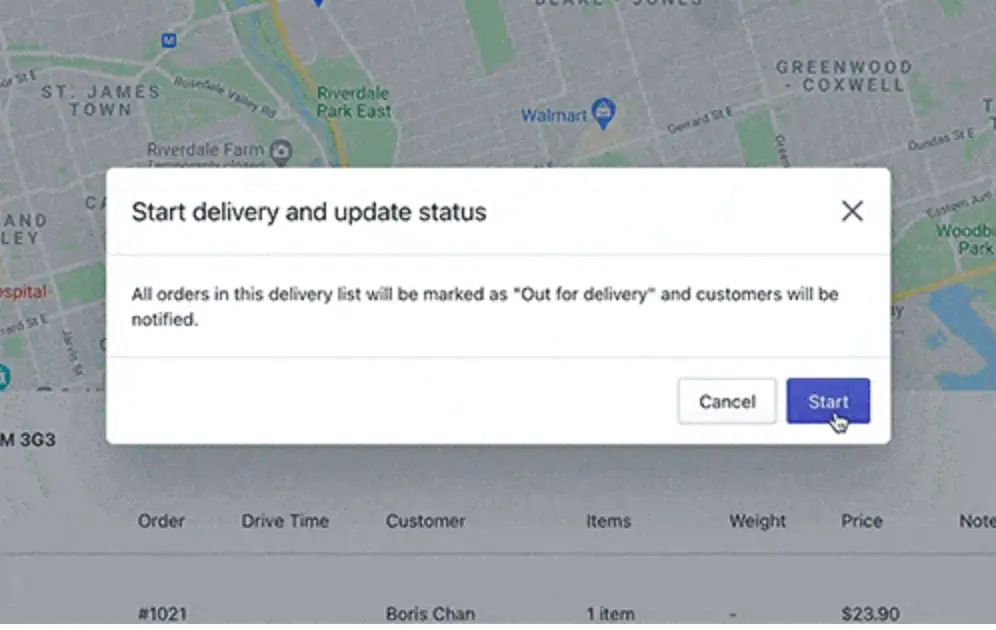
On shared routes, we've added a "Start Delivery Route" button your driver can click before heading out on their route. This will send your customers an email notification letting them know their orders are out for delivery. When the order has been delivered, they can click the Mark as Delivered button next to the stop and an email will be sent to the customer letting them know their order has arrived!
Hide the columns you don't need!
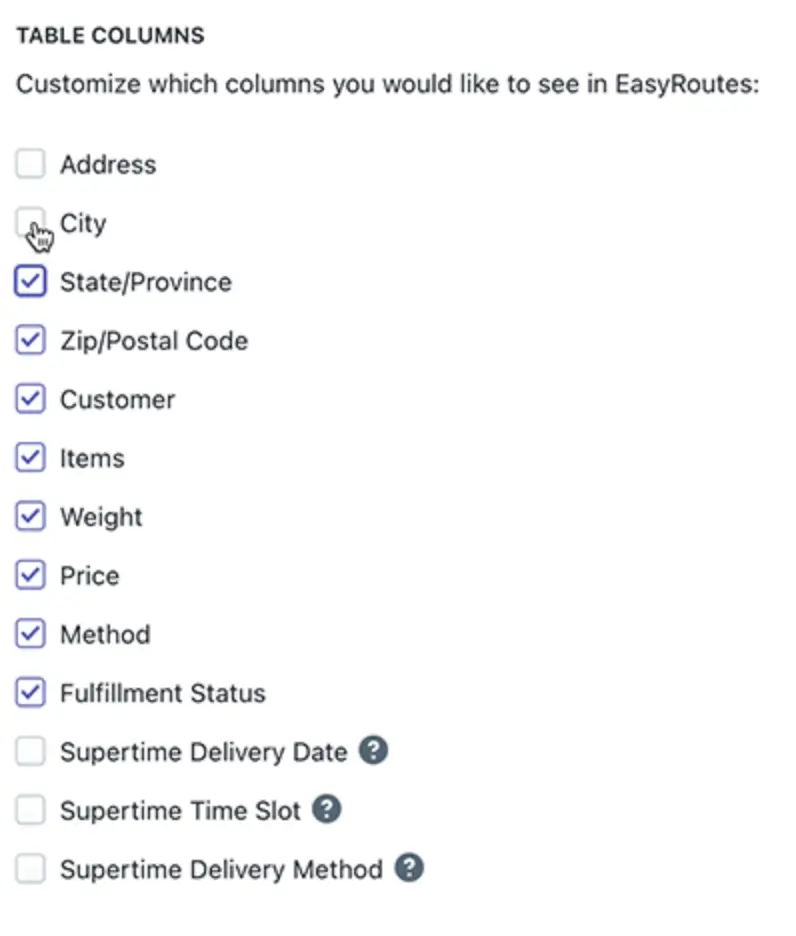
We realize the Orders page table can get quite long (lots of horizontal scrolling) and not everybody needs to see the same information. So, we've added a Settings tab where you can customize which columns you would like to see in EasyRoutes.
Edit Start/End Locations within a route
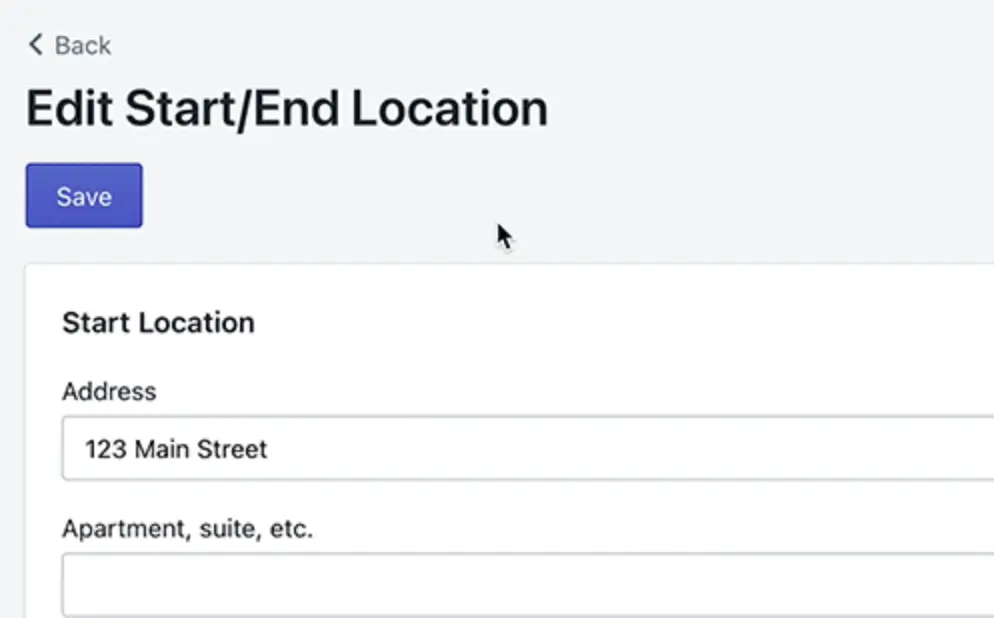
Now you can edit your start and end locations within a route, rather than having to generate a whole new one.
Print only what you need
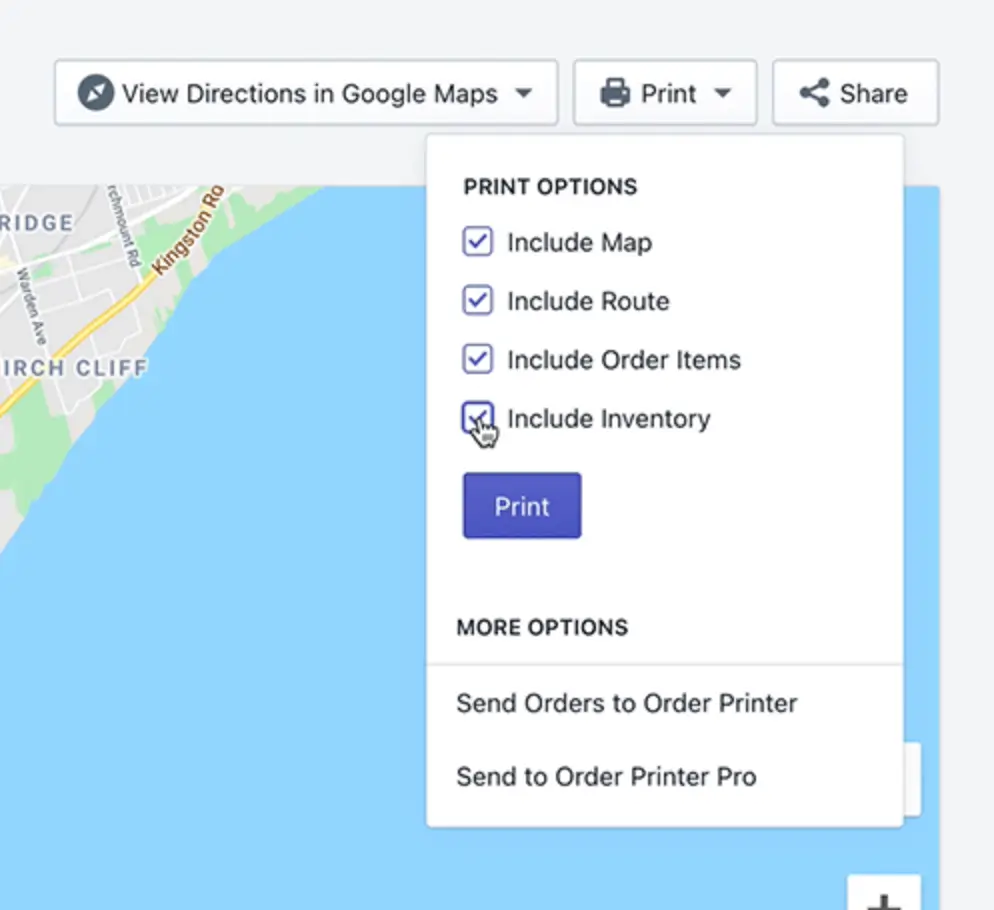
Save paper by printing only the information you need.
View SKUs in Inventory
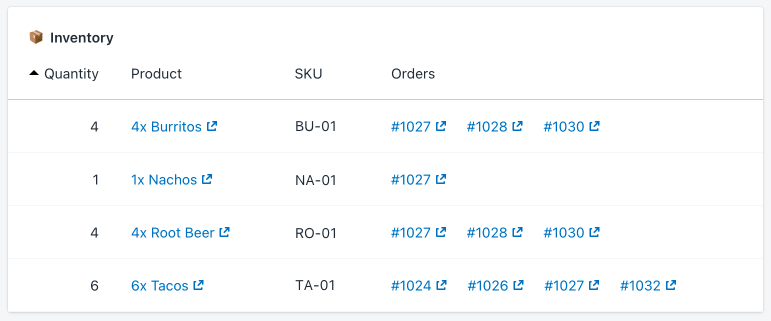
Product SKUs are now visible in the inventory tables at the bottom of your generated routes.
Add orders to existing routes!
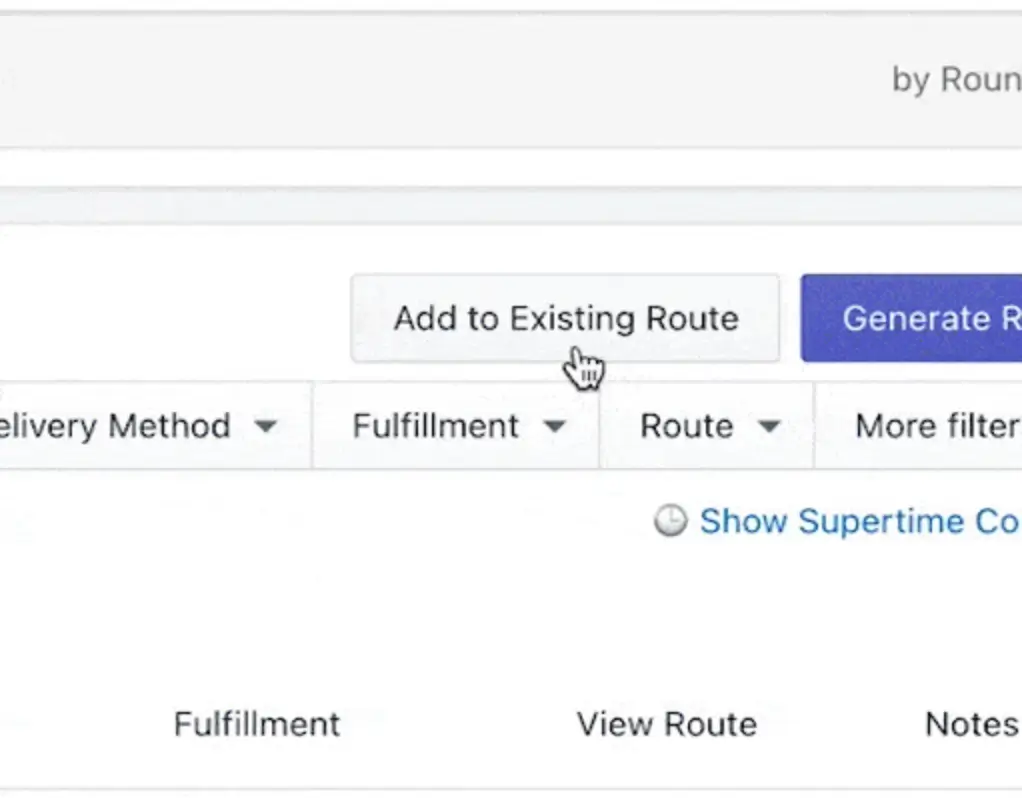
Now you can add orders to routes you have previously created. Just select the orders you wish to add on your EasyRoutes Orders page and click the "Add to Existing Route" button!
Rename your routes!
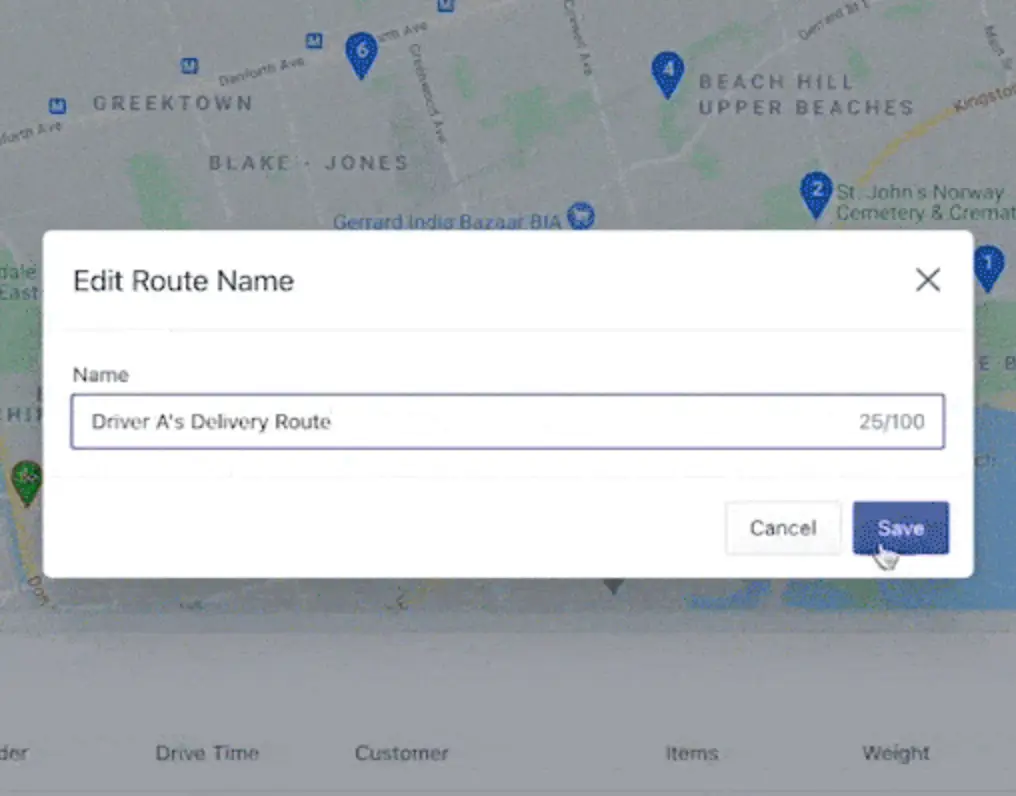
Click the pencil icon next to the title of your route to quickly give it a new name!
Delivery notifications for your customers!

When orders are marked as delivered, your customers will automatically be sent an email letting them know.
Inventory table updates
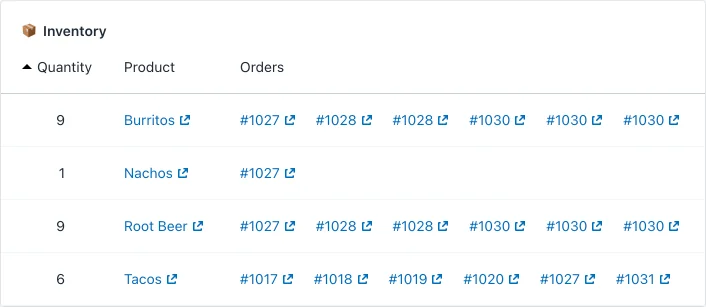
We've added the order numbers to the items in the Inventory to better help with packing.
Order weight information
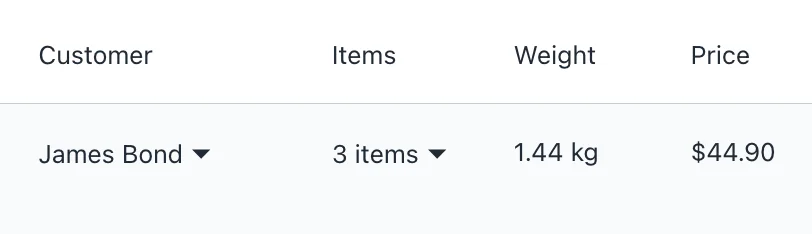
We've added order weight information to better help those with vehicle capacity issues.