
Redesigned route page
We've redesigned the pages you see when viewing routes to make planning your deliveries even easier.
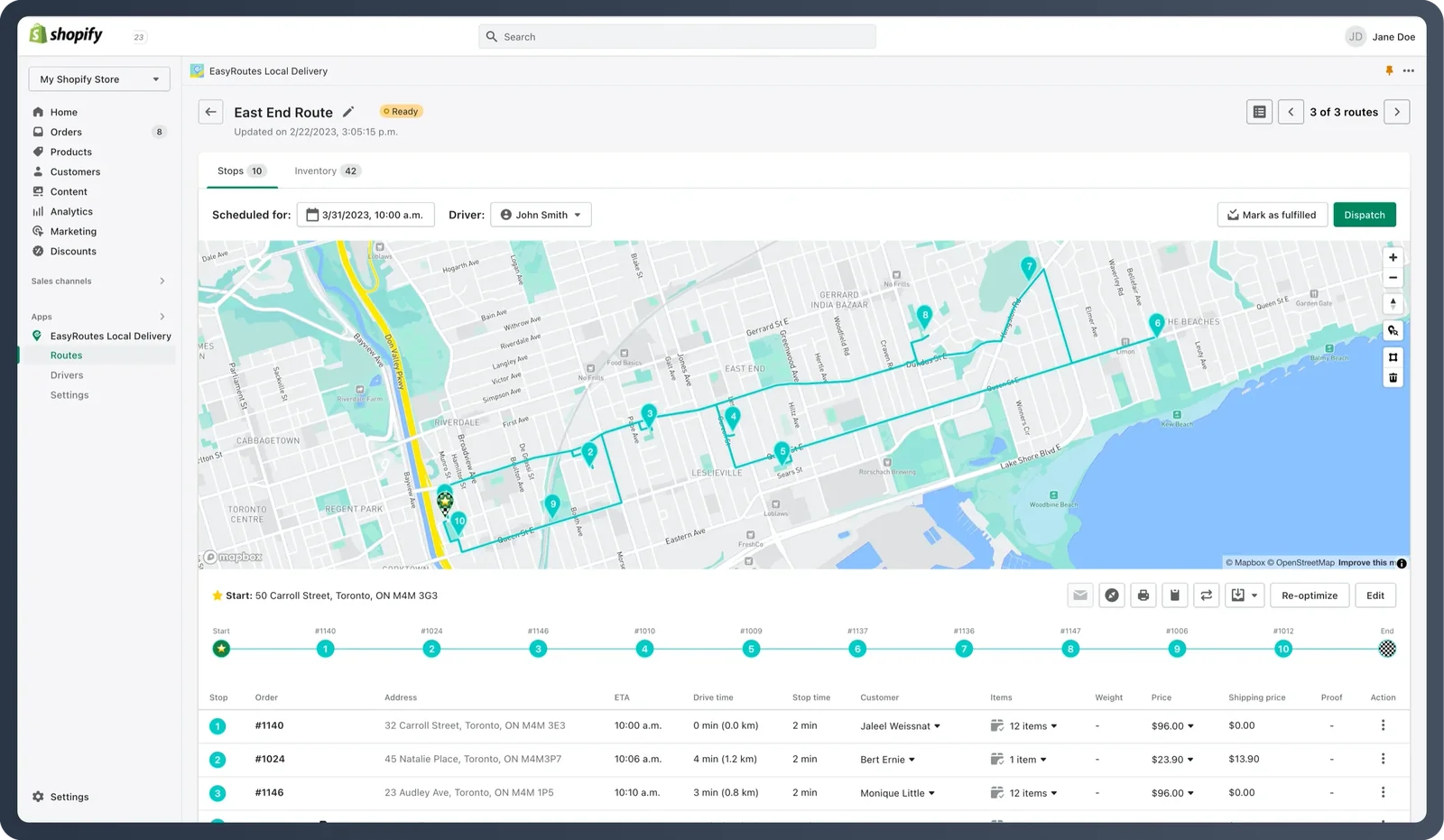
Apart from moving various elements around to make them more accessible, we've also added a couple cool new features we think you're going to like.
At the top of any route or route group you will now see some tabs:

The Stops tab shows the map and your list of stops. Here is where you can edit your routes before dispatching.
The route inventory which formerly sat way at the bottom of the page now has it's own Inventory tab.
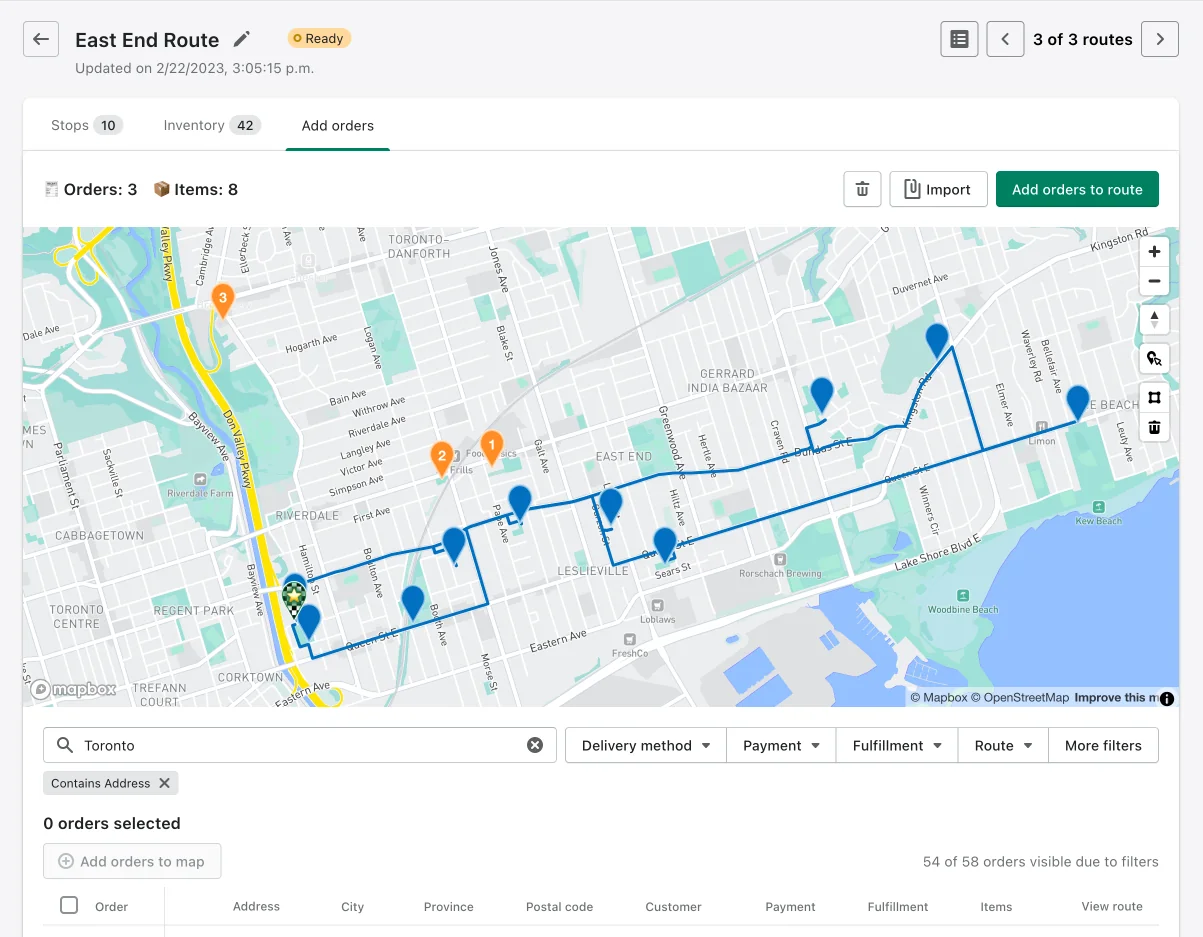
And finally, we've added an Add Orders tab which allows you to visually add orders to routes without having to go back to the Select Orders page.
New setup guide
New EasyRoutes users will now see a Setup Guide that offers a step-by-step walk-through of how to get started with our app.
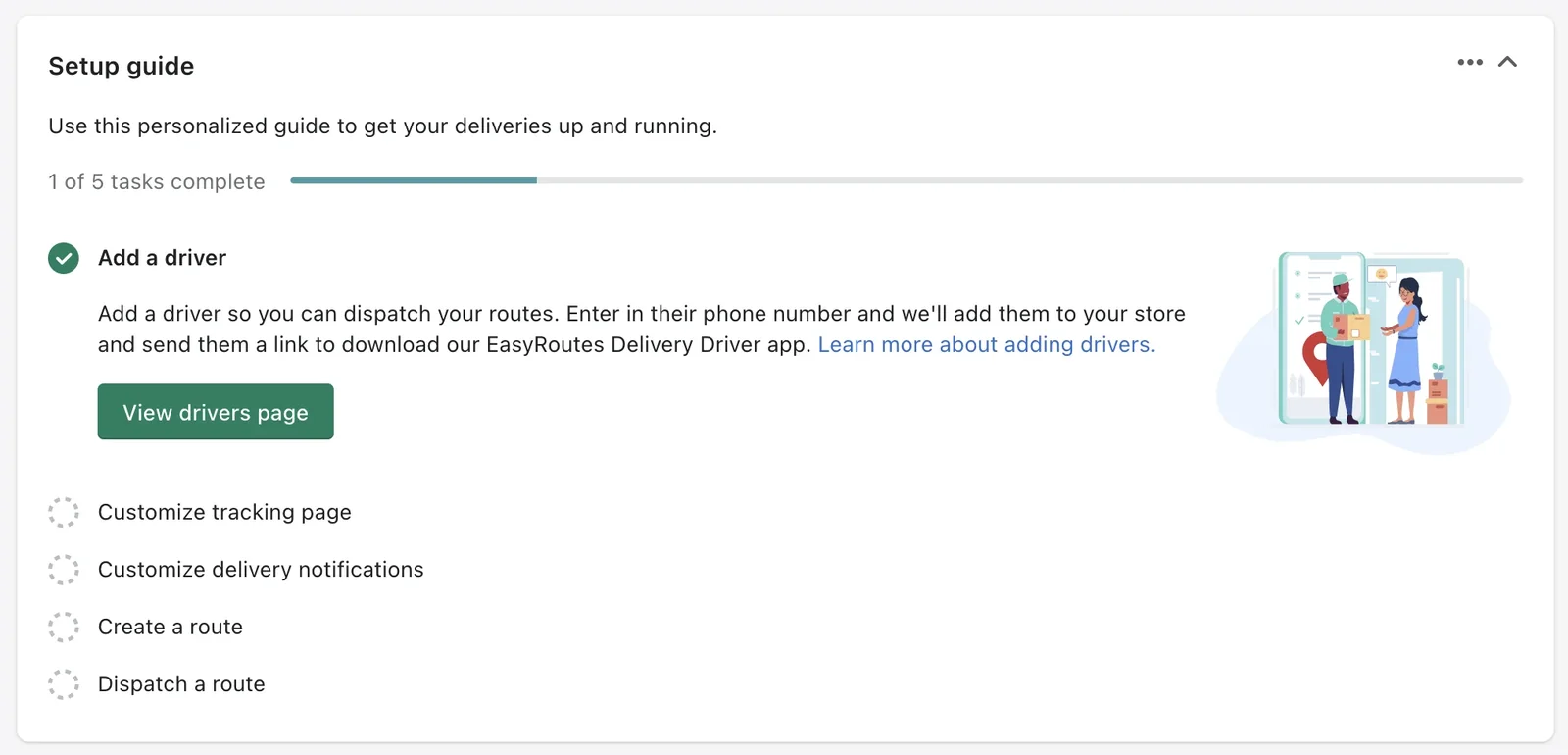
For those of you who are already using EasyRoutes, you can re-launch this Setup guide in your EasyRoutes settings if you would like a refresher!
Improved order importing
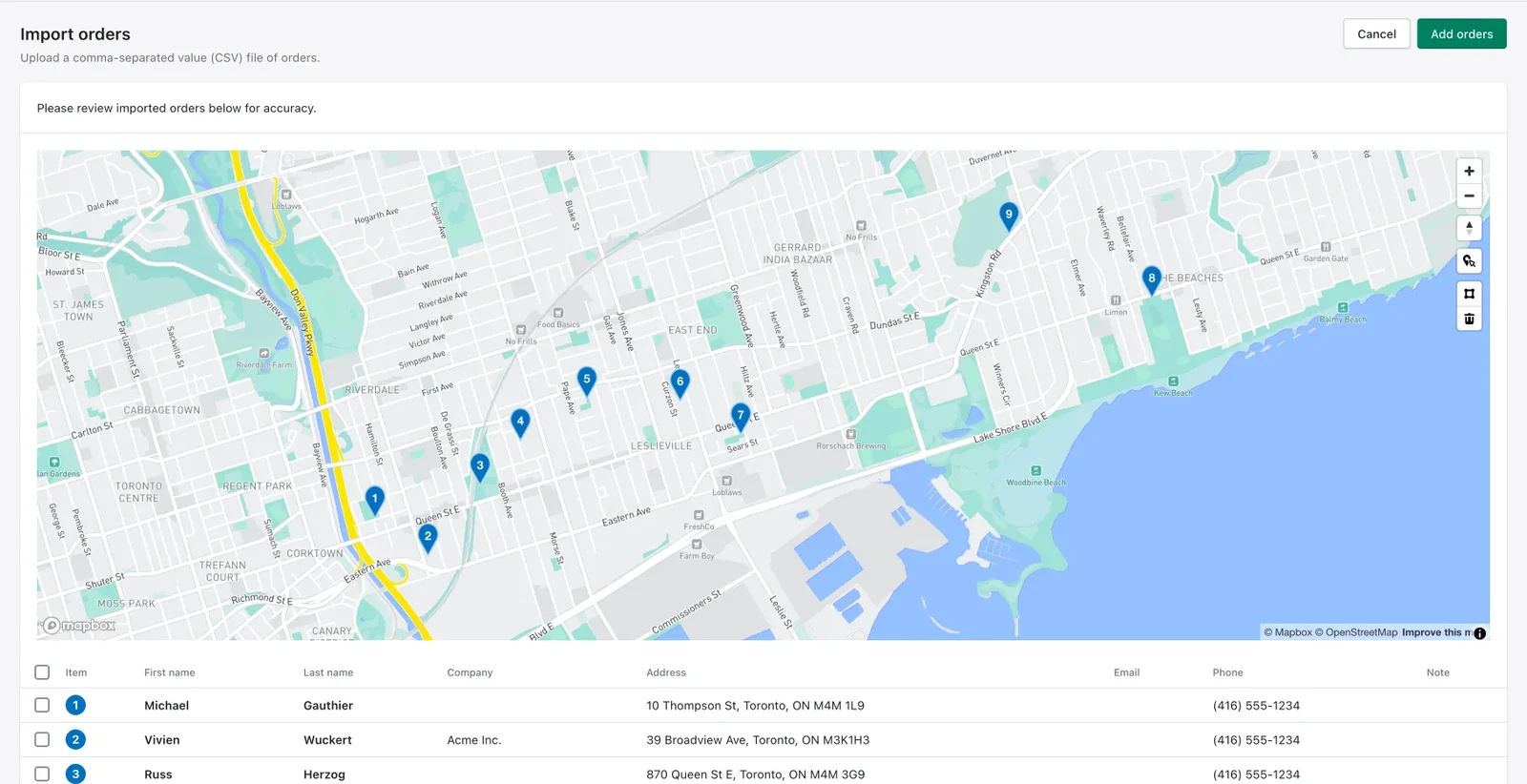
Now when you import orders using a CSV you can preview them on a map first.
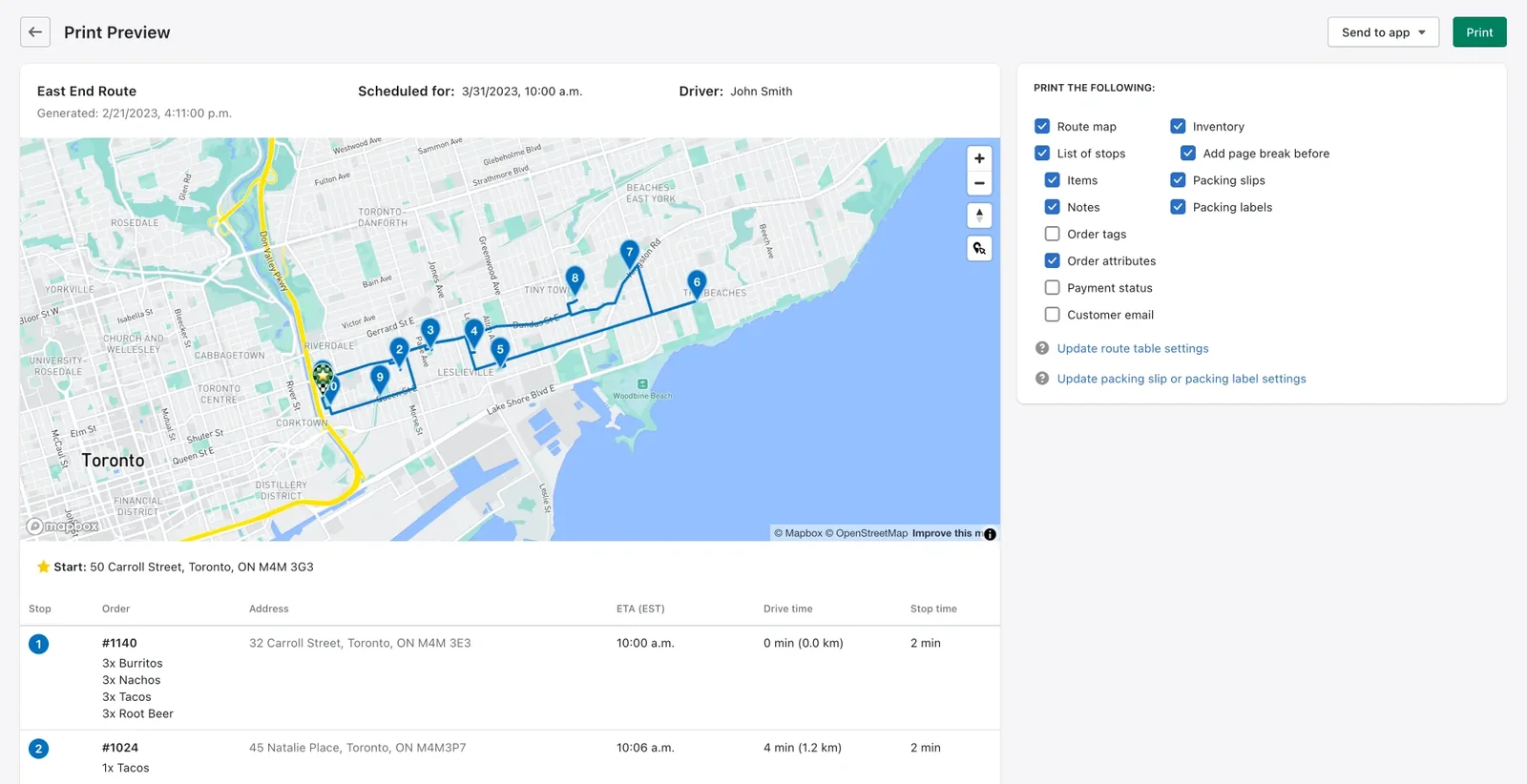
Live print previewing
We've created a brand new live print preview mode where you can turn on/off the elements and information you want to see and view the changes live so you know exactly what is going to be printed.
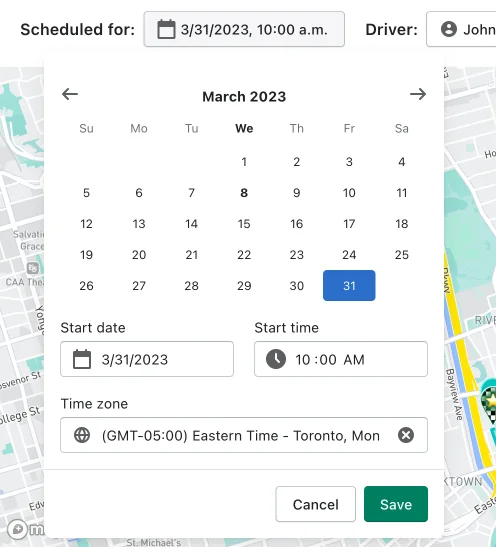
Time zone support
To better support businesses delivering across time zones you can now specify a time zone when scheduling routes.
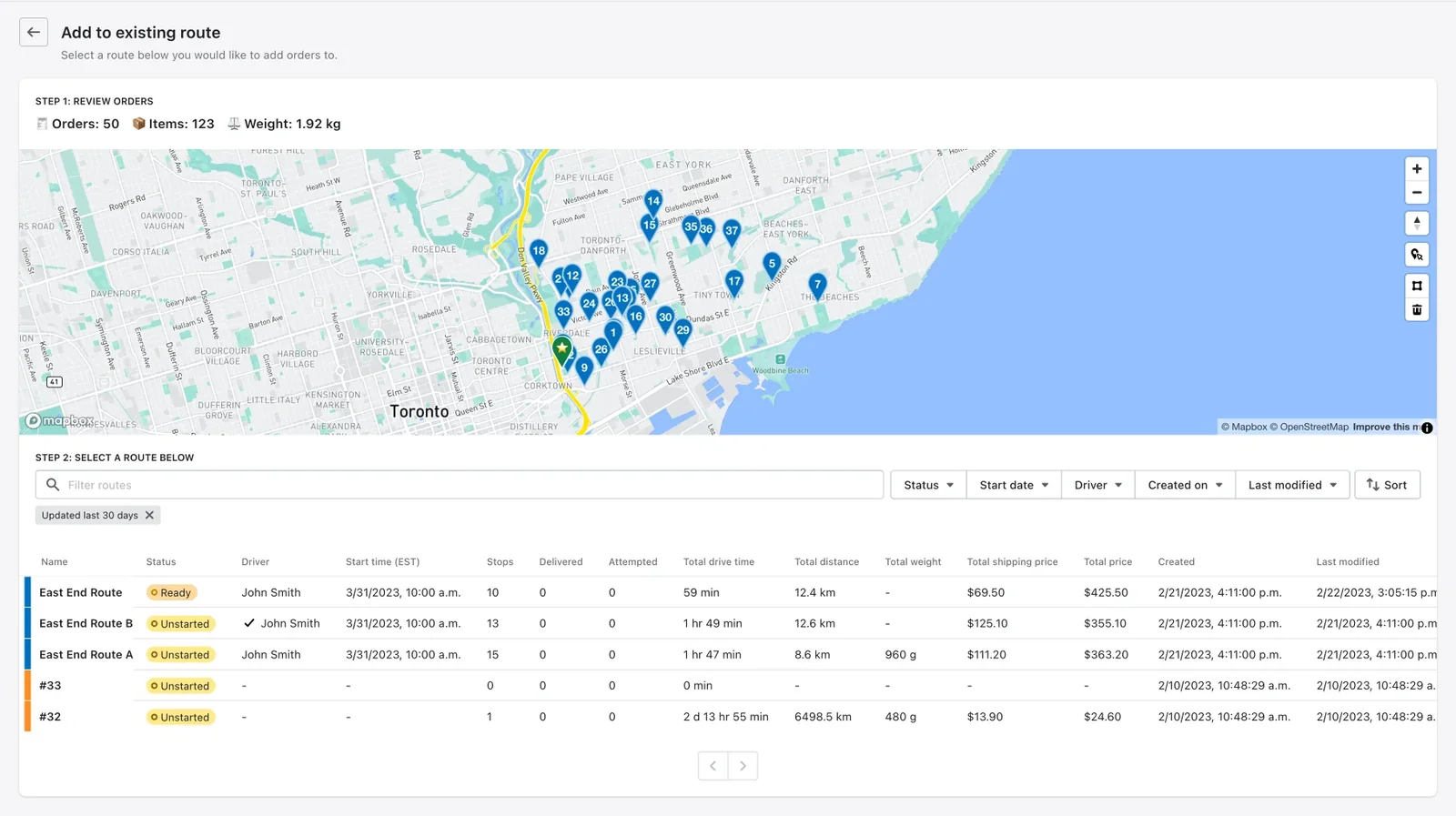
Moving orders between routes is now easier
We've improved the "Add to existing route" page so that you can filter for the route that you're looking for, and review the orders that you want to send on a map.
We've also updated our "Send to routes" screen to make it easier to send orders from one route to another.
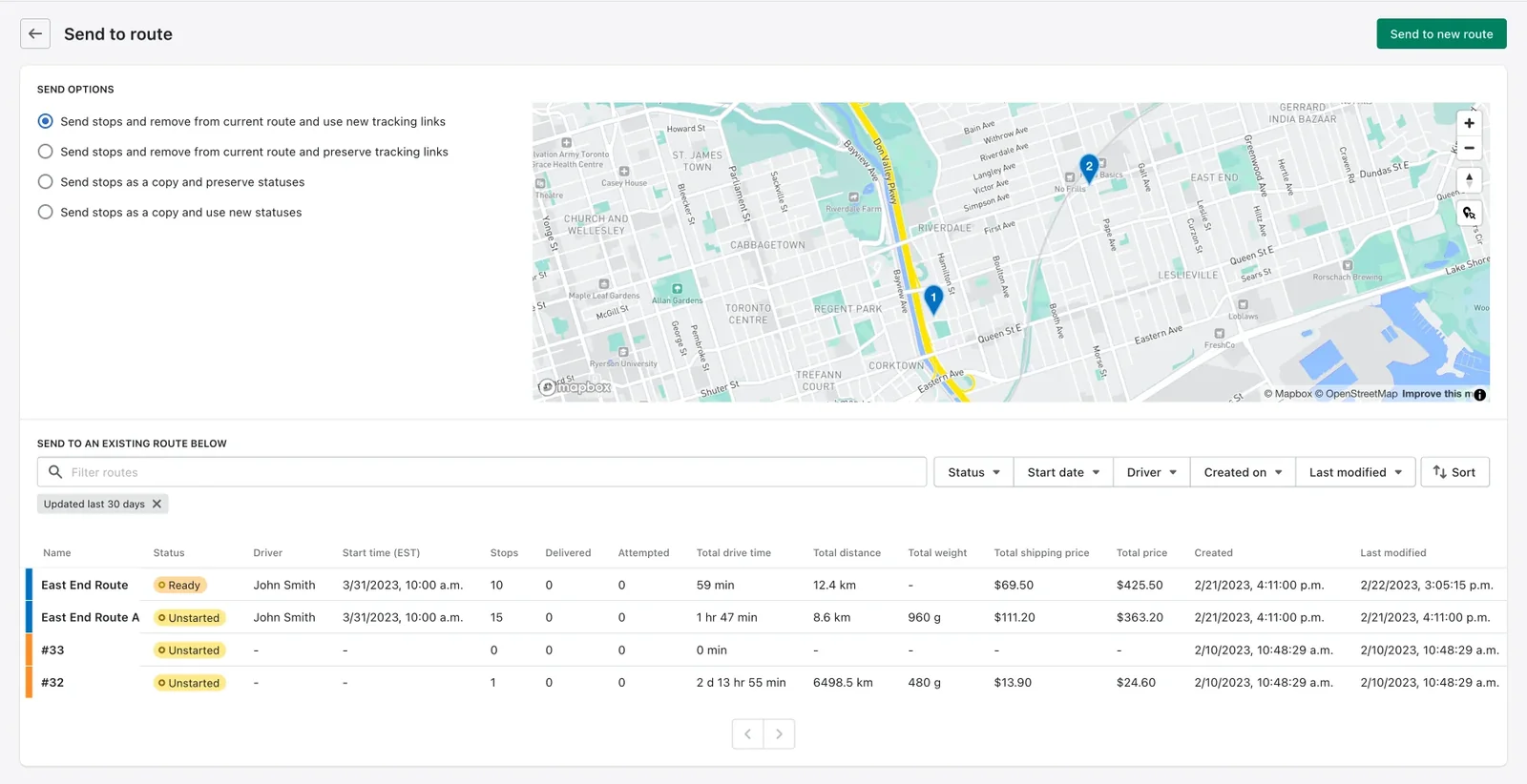
When you send orders to another route you also now have the option to send them over as new stops.
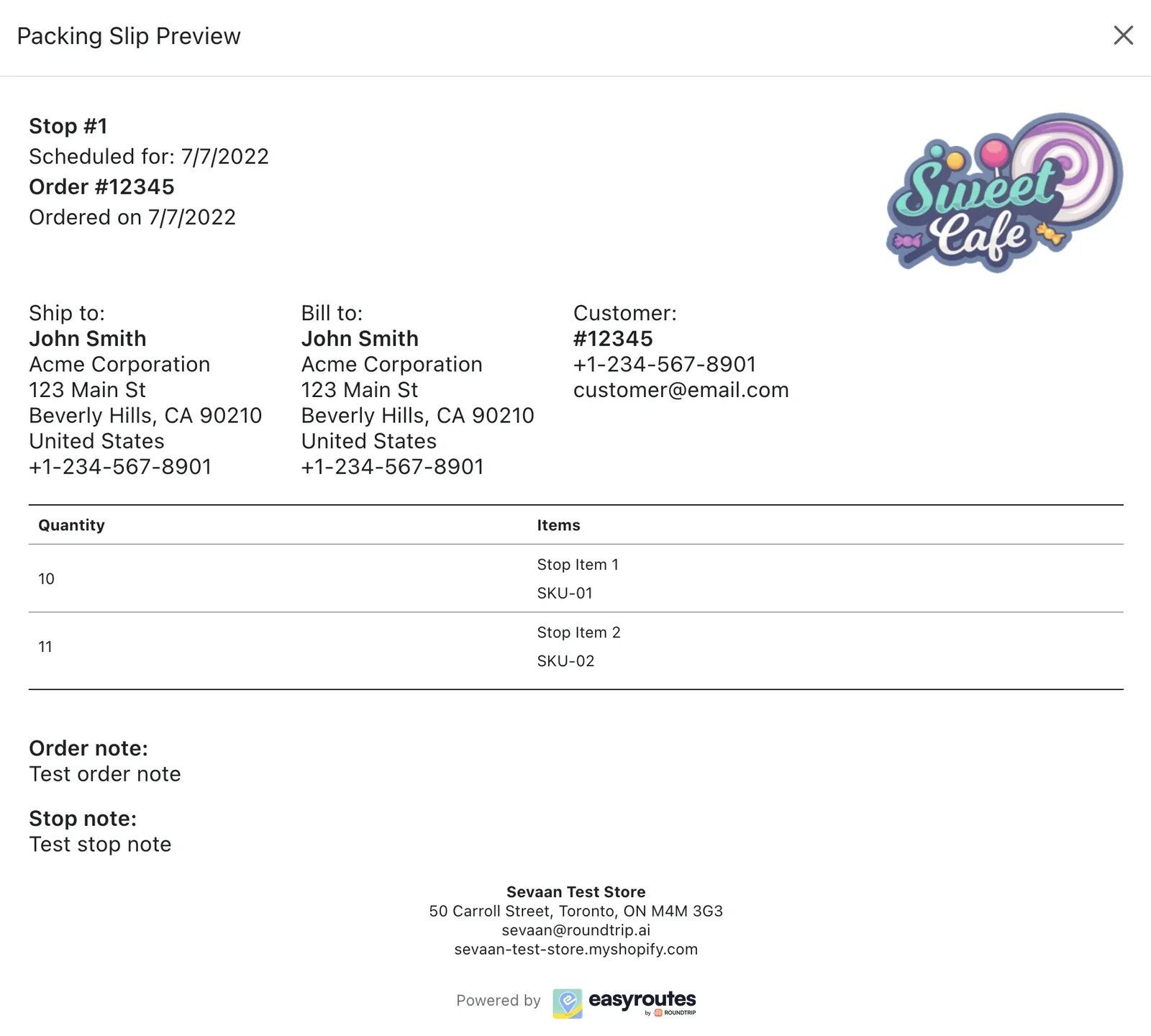
More packing slip and printing label customizations
We've made our packing slips and printing labels more customizable, including the ability to specify a width for your store logo.
Various other improvements
- You can now hide the "View Order" button on your tracking pages.
- The Routes page now shows routes from the last 30 days by default instead of the last 7 days.
- We now display orders notes in the pop-over that appears when you click a pin on the map.
- We've made it more clear when you are dispatching a route to a driver that's not using an active driver seat.
- We've made some usability improvements to our Add Manual Stop and Edit Start/End Location pages.
- We now show the total number of items when copying stops to clipboard.
- Various UI improvements and small bug fixes.