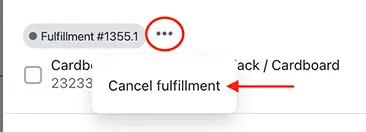
We've added a new "Edit stop items" panel, making it easier to cancel fulfillments, select multiple fulfillments for a stop, or mix and match fulfillments with unfulfilled items for a particular stop.
You can access the new panel by clicking the dropdown arrow under the "Items" column for any stop on a route:

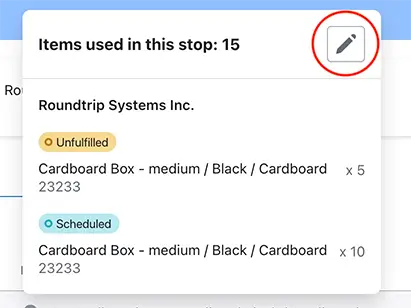
This will open a panel displaying all items associated with this stop, including those that are currently unfulfilled and scheduled - click the pencil icon in the top right corner to launch the Edit stop items panel:
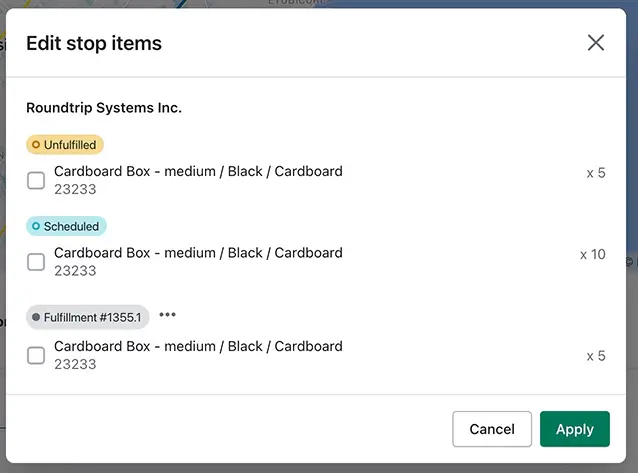
From the Edit stop items panel, use the checkboxes to the left of each individual fulfillment to select which items should be included in this stop, and click Apply to save your changes.
If you need to cancel a previous fulfillment (such as #1355.1 shown above), click the three dots icon to the right of its title, and select "Cancel fulfillment":