
Multi-Route View
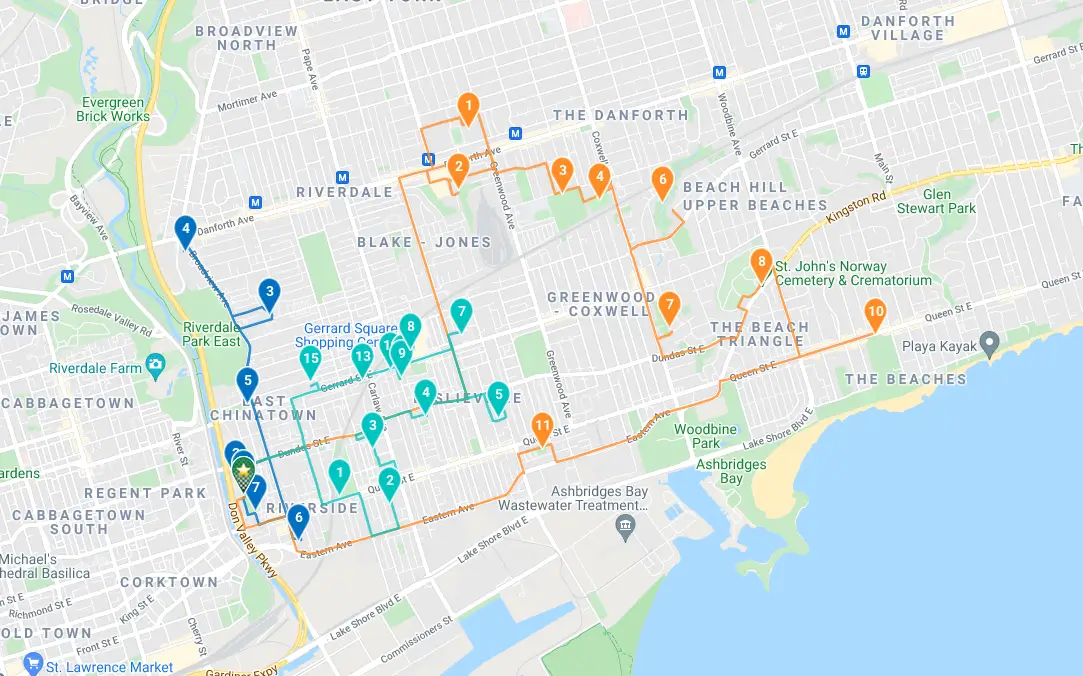
Now when you generate multiple routes using our Route Splitting route option...
You will land on a page showing all the routes in the group on one map, as well as relevant stats for each route.

You can cycle through all the routes using the navigation in the top-right, or click the View All Routes button to return back to multi-route view:
More functionality will be coming to help you with planning multiple routes soon!
E-Signature Proof of Delivery
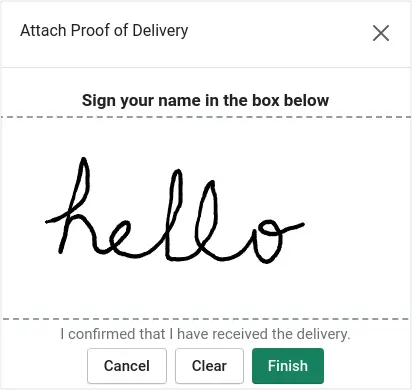
Now your driver can capture e-signatures as proof of delivery for peace of mind. They can also attach photos and a delivery note.
Redesigned Driver Experience on Mobile
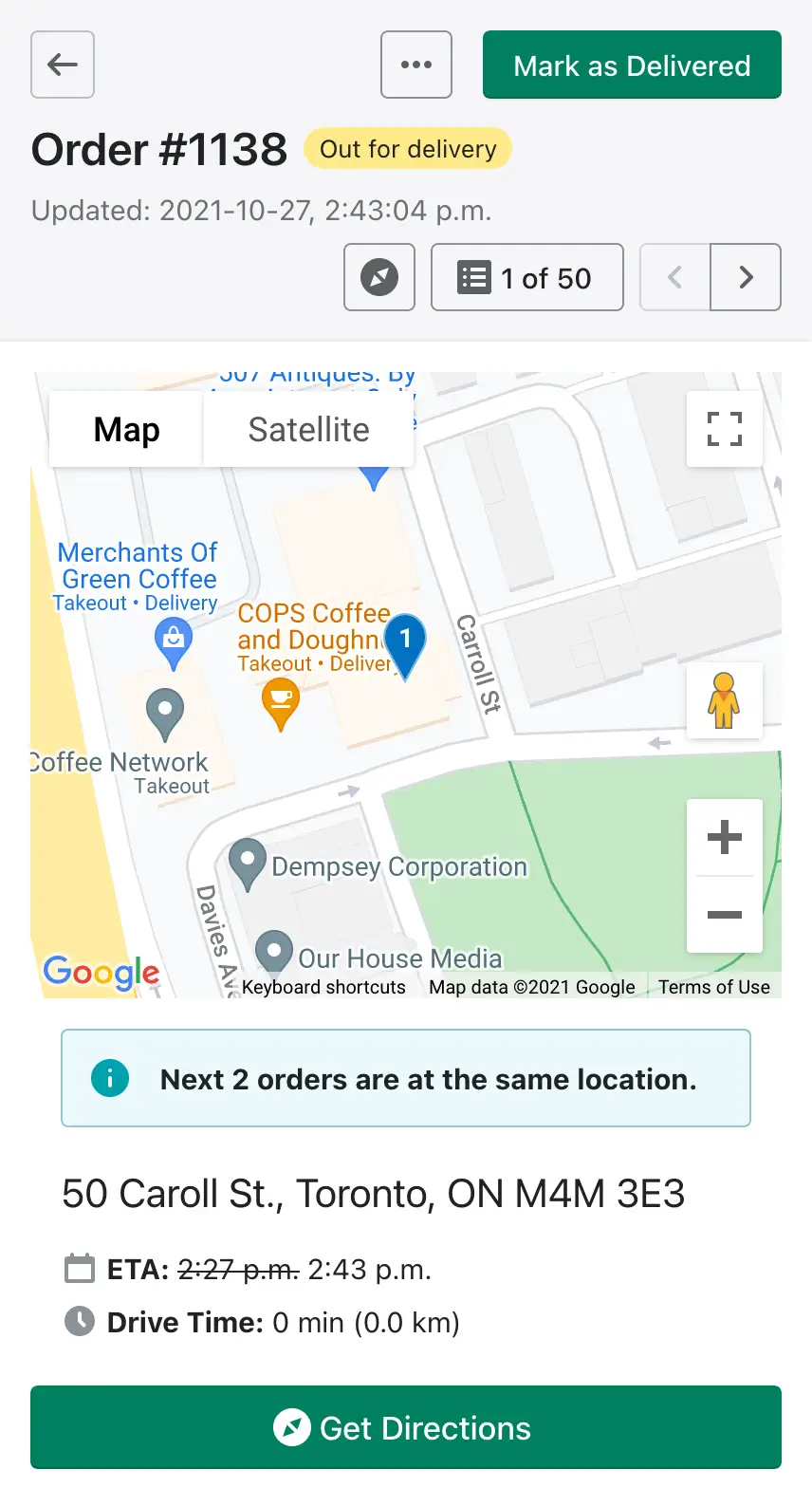
We've refactored our Driver View making it even easier to use on mobile devices. We've re-positioned informational elements and added more buttons to access common actions easier with a tap of the finger.
Enlarge Maps
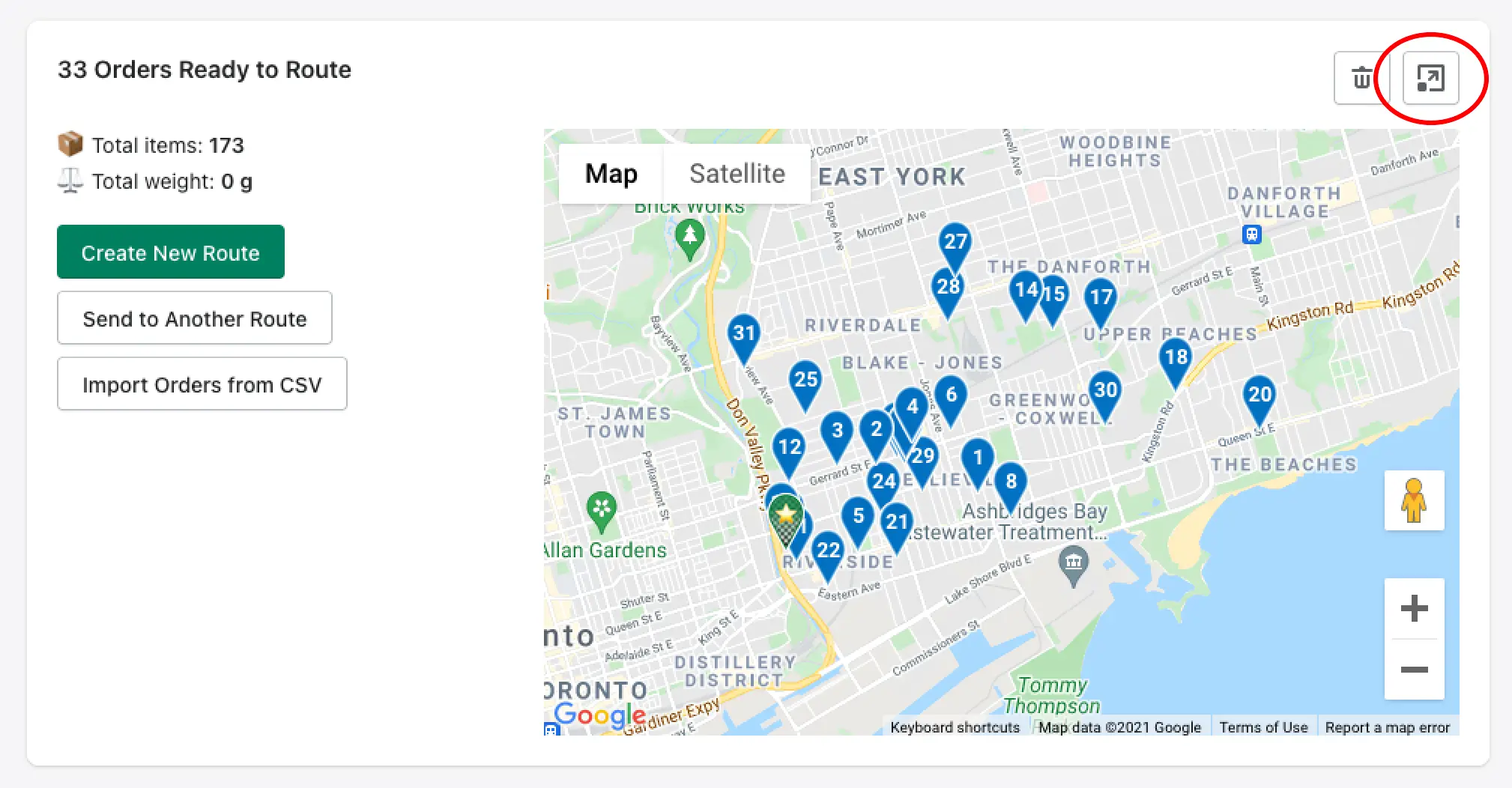
Make the maps bigger on your Orders Page or on any of the routes you view by clicking the Enlarge Maps icon.
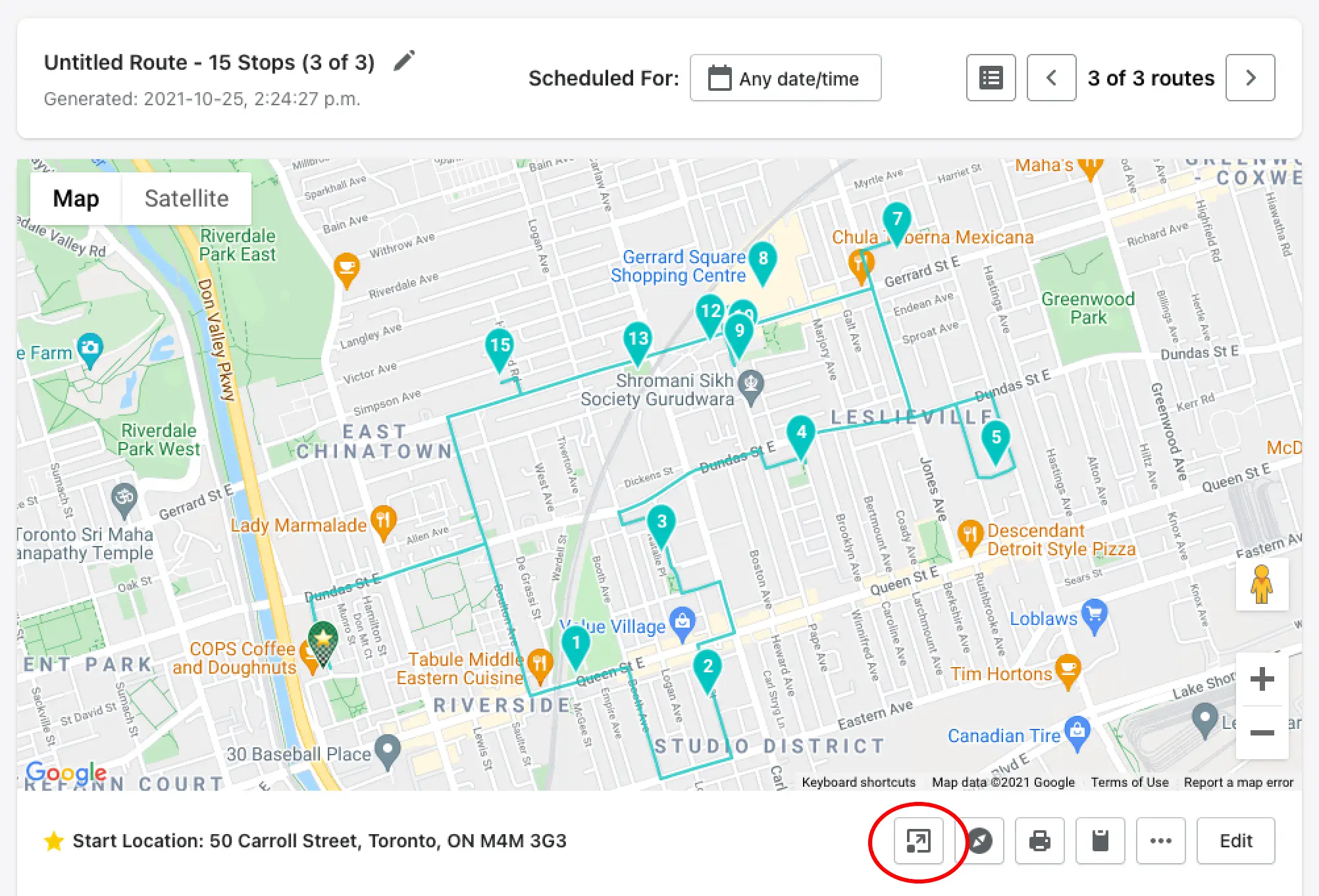
Click the icon again to shrink it back to its regular size.
Auto-Advance to Next Stop After Marking as Delivered
We've made it easier for you to navigate to your next stop in our driver view as well!
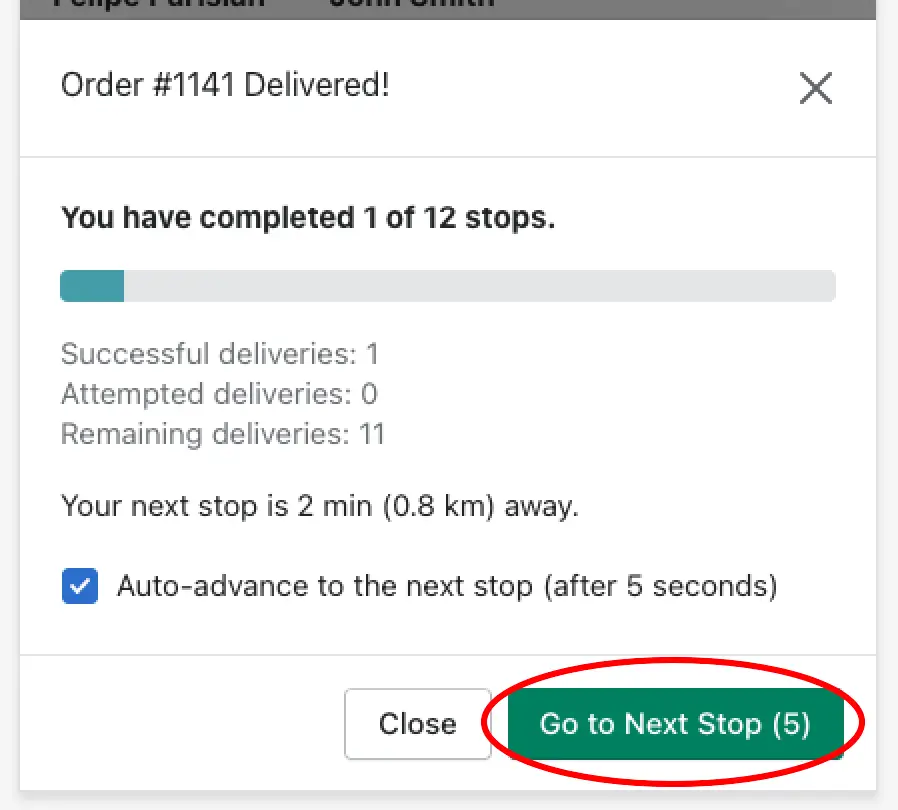
When you or your driver marks an order as delivered, EasyRoutes will auto-advance you to the next stop after 5 seconds.
Packing Slip Options
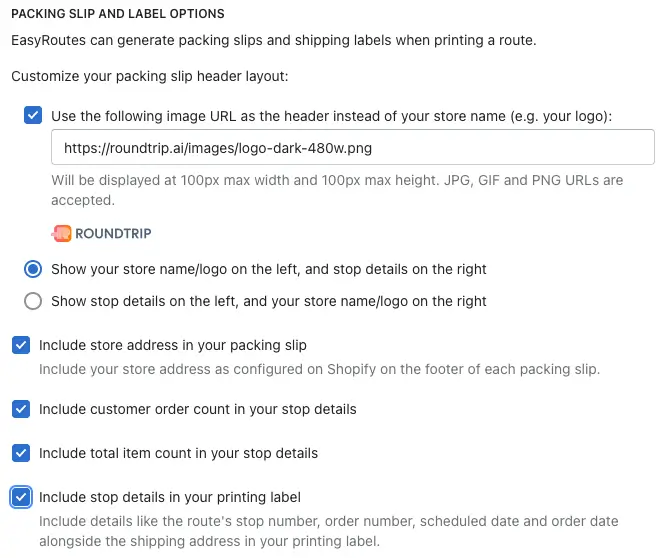
Customize your packing slips with new options found in your Settings. You can choose where to display your store logo, as well as select various types of information to print on your packing slips.
Ongoing improvements + Bug Fixes
We're always working hard to not only add new features, but to also make sure that EasyRoutes is always running smoothly. As such we've made lots of little tweaks here and there to boost the efficiency of our routing engine. Let us know if you notice a difference! Some notable updates include:
- Better Support for Poor Connectivity
- Improvements to our ETA calculations in our routing engine
- Update Order Data no longer requires refreshing EasyRoutes
- Copy to clipboard functionality for route and stop information in Route History
- Show Total Item Count in a route
- Filter by Delivery Status
- Many other bug fixes and stability improvements