
We've enhanced app behaviour when making edits to existing routes that may have out of date route or stop information - for example:
- A route is open in two separate browser tabs/windows;
- Changes were made and saved to the route in the primary window;
- The route has not been refreshed in the secondary window, and the saved changes from the primary window are not reflected in the secondary window, thus the secondary window's route is out of date.
In this example scenario, when making and saving changes (such as manually re-ordering stops, editing individual stops, or updating applied Route Options) in the secondary window, a warning will display indicating that you're working with an out of date route:
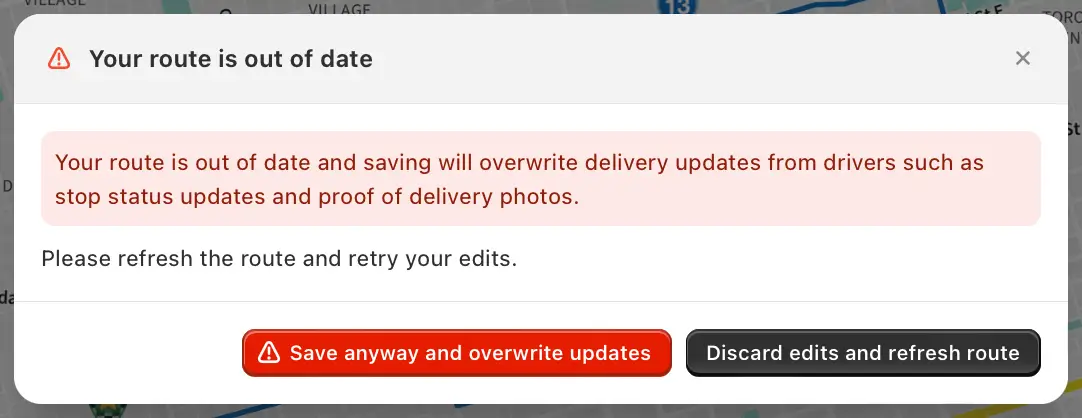
The warning will provide two options:
- Save anyway and overwrite updates: Selecting this option will apply any new changes made in the secondary window, but will overwrite the initial changes made and saved in the primary window. If selected, the primary window will now be out of date until refreshed, and any delivery updates or Proof of Delivery already uploaded from the mobile app may also be overwritten.
- Discard edits and refresh route: Selecting this option will discard any new changes made in the secondary window, and will refresh the route. If selected, both windows will now display matching, up to date information, and further changes can now be applied.