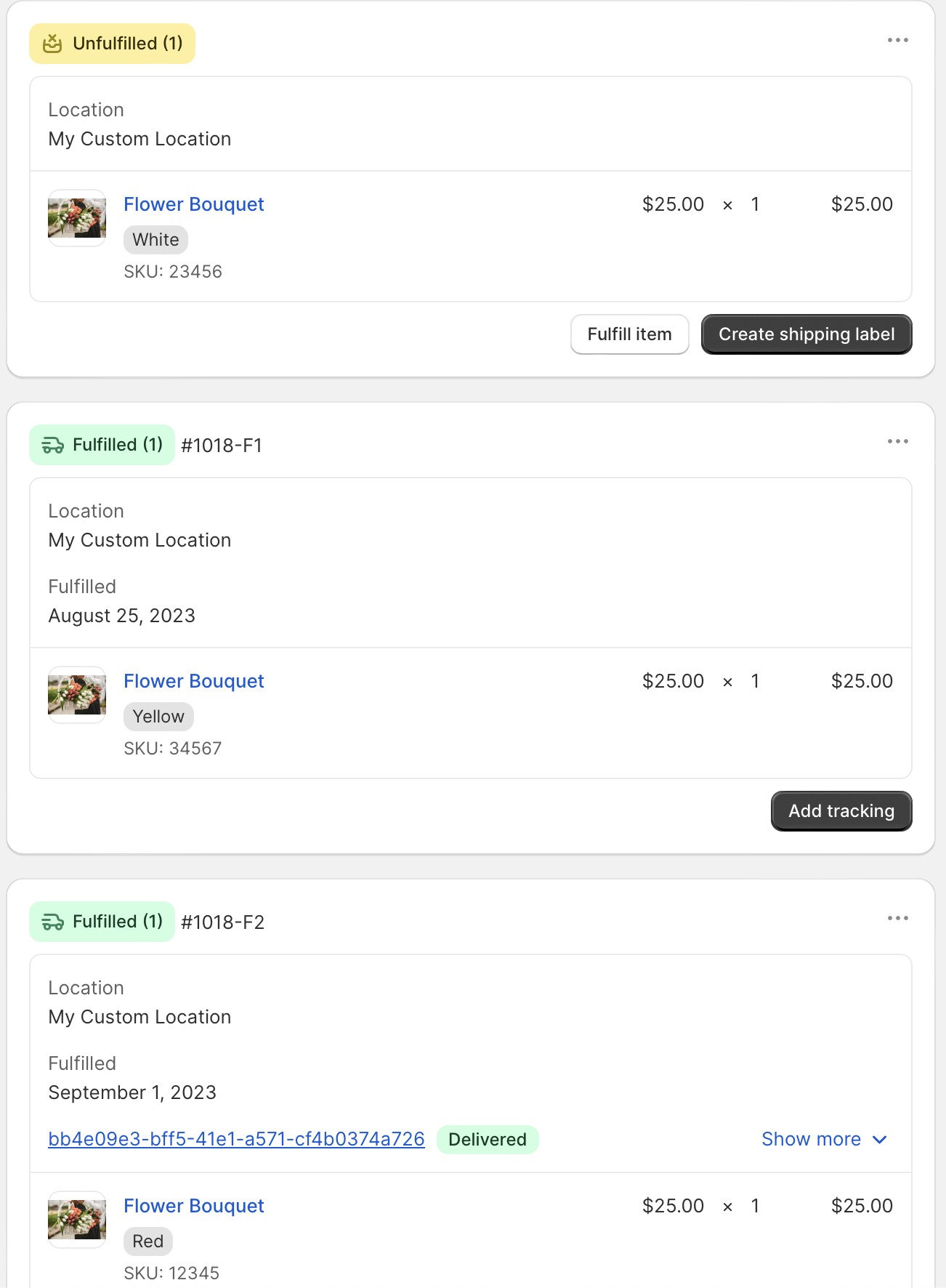
We've increased the level of detail and user control for orders and stops that have partial fulfillments, which can be particularly useful for orders that ship from different warehouse locations, or scheduled fulfillments (such as subscription orders) that will be delivered on any future date(s).
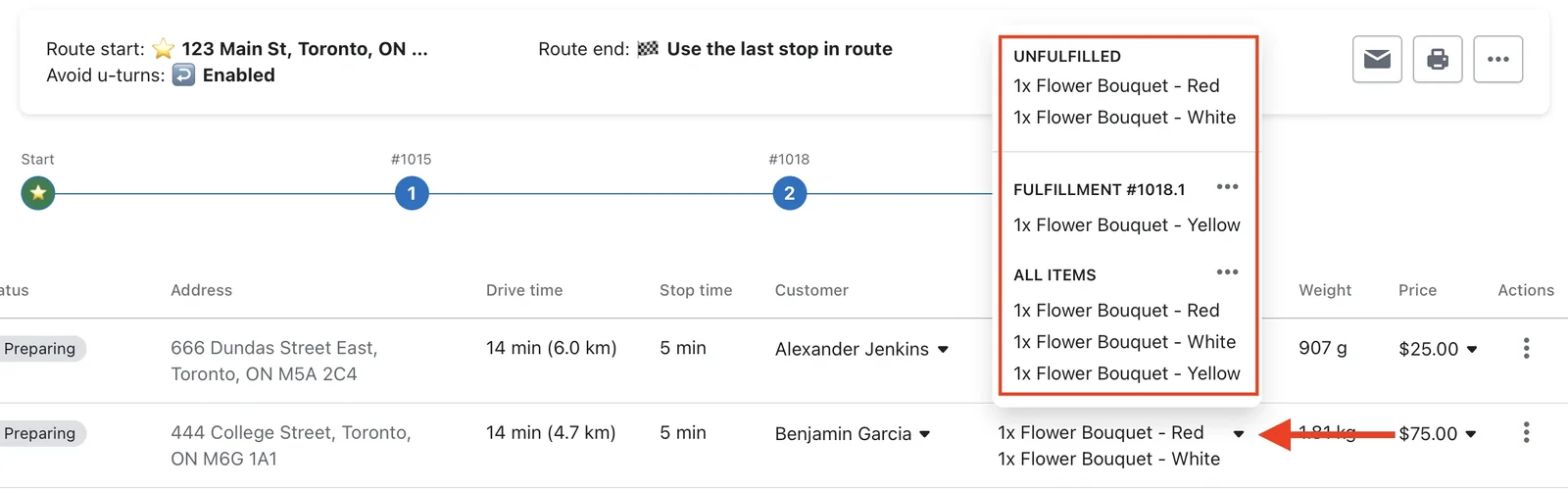
Once a route is created with a stop that contains a partial fulfillment, from the route page, all fulfilled and unfulfilled items included in that stop can be viewed by clicking the dropdown arrow in the Items column for that stop:
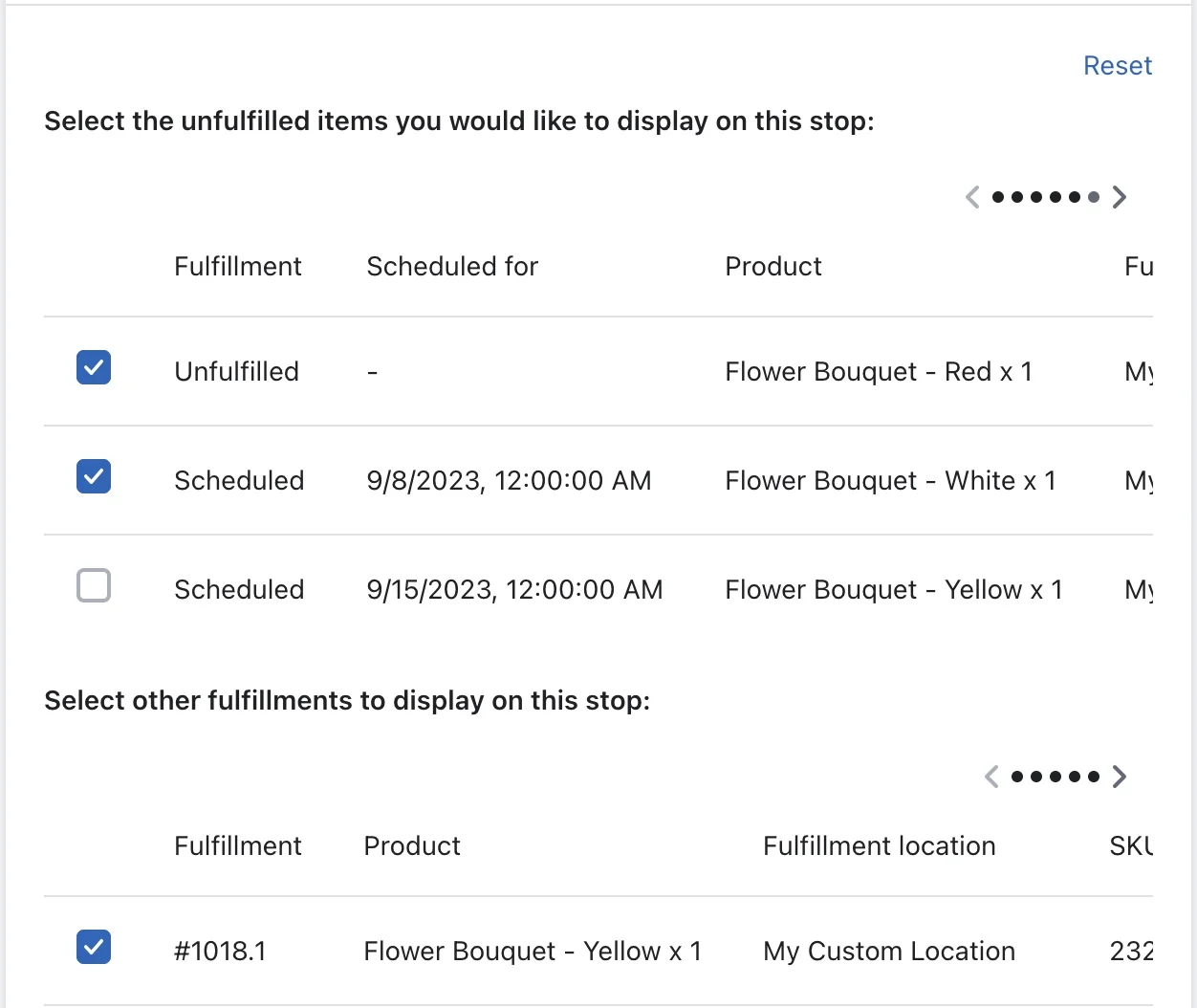
By clicking Actions > Edit stop and scrolling down to the stop's Advanced options settings, you can see which portion(s) of the order have already been fulfilled, which are scheduled (if applicable), and select any/all remaining items to be included in this stop's current fulfillment. You can also view each item's fulfillment location to determine which warehouse location the items are shipping from:
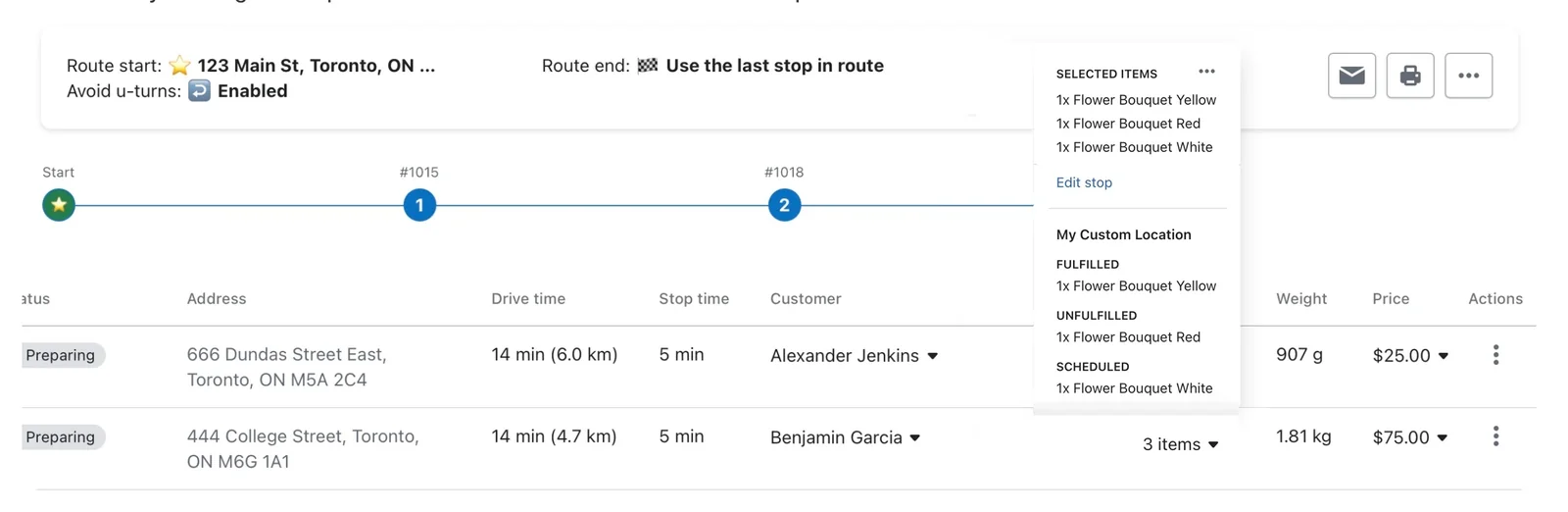
Once the stop has been fulfilled (depending on your EasyRoutes fulfillment settings, this may be manually triggered, or when a particular delivery status is applied to the order) the order page will now display any remaining unfilfilled items, and a breakdown of each past fulfillment, which items they contained, and which location they were fulfilled from: