
Import Orders via Spreadsheet (.CSV)
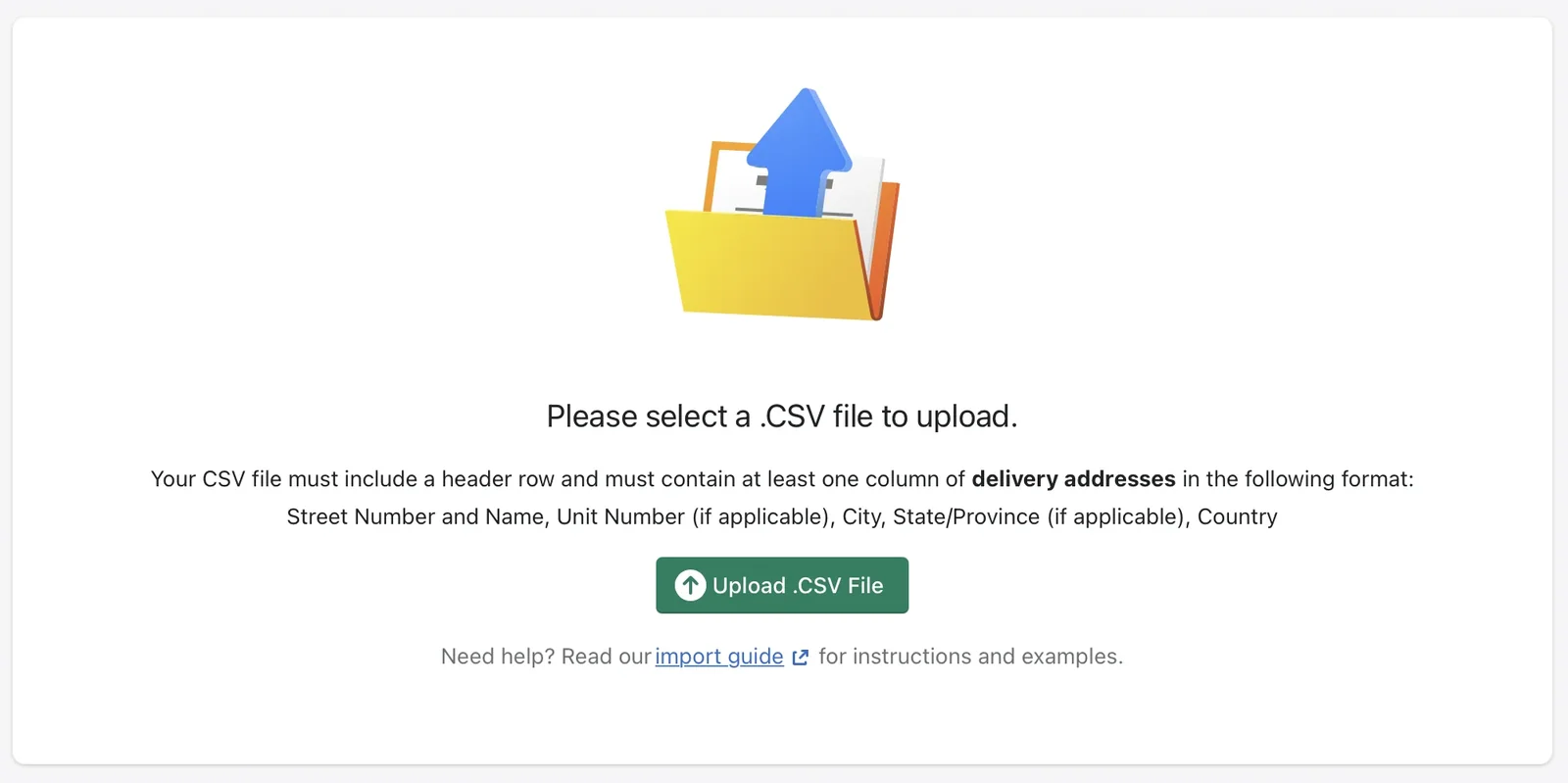
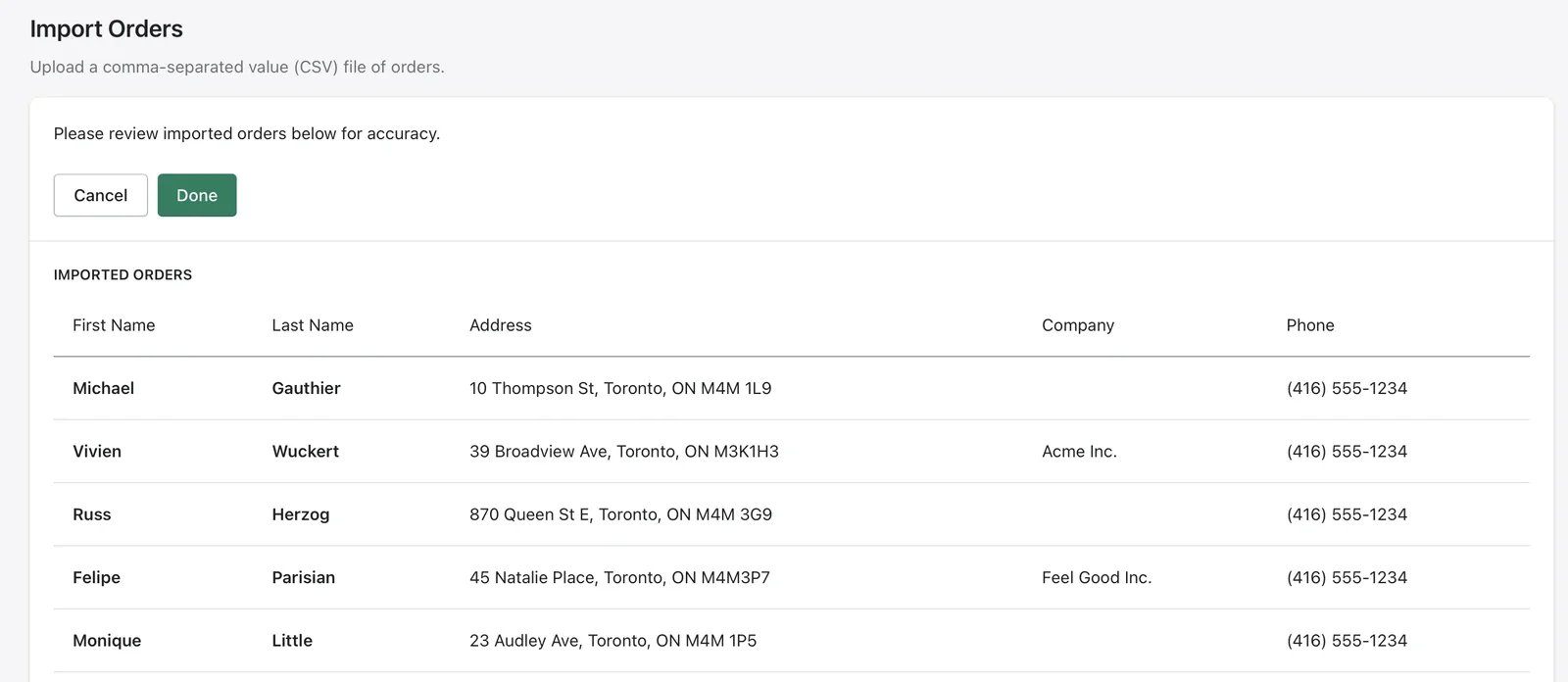
Do you need to deliver orders that you tracking on a spreadsheet? Use our new Import Orders feature to import your .CSV into EasyRoutes. To do so, just click the "Import Orders from CSV" button on the Select Orders page.
Preview Stops with Order Selection Map
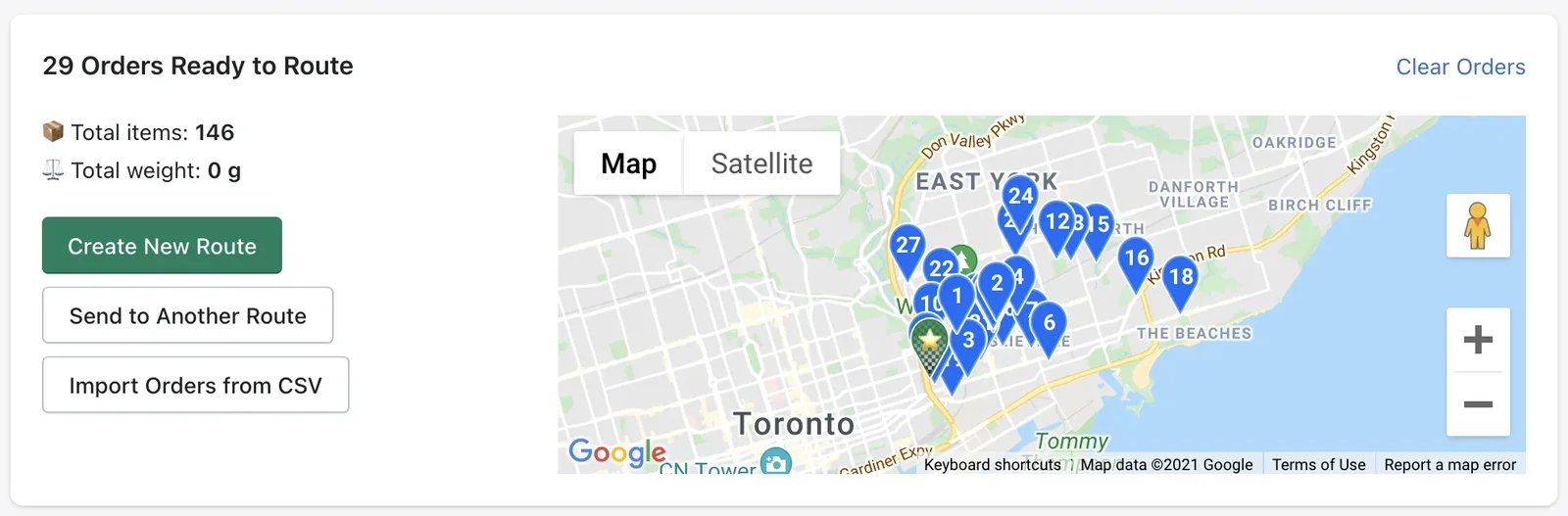
We've added a map to the Select Orders page to better help with visual planning. Now when you select orders and add them to the staging area, you can preview the points on a map. See an outlier you want to remove? Just click on the map pin to remove it from the selection.
Print Packing Slips in Route Order
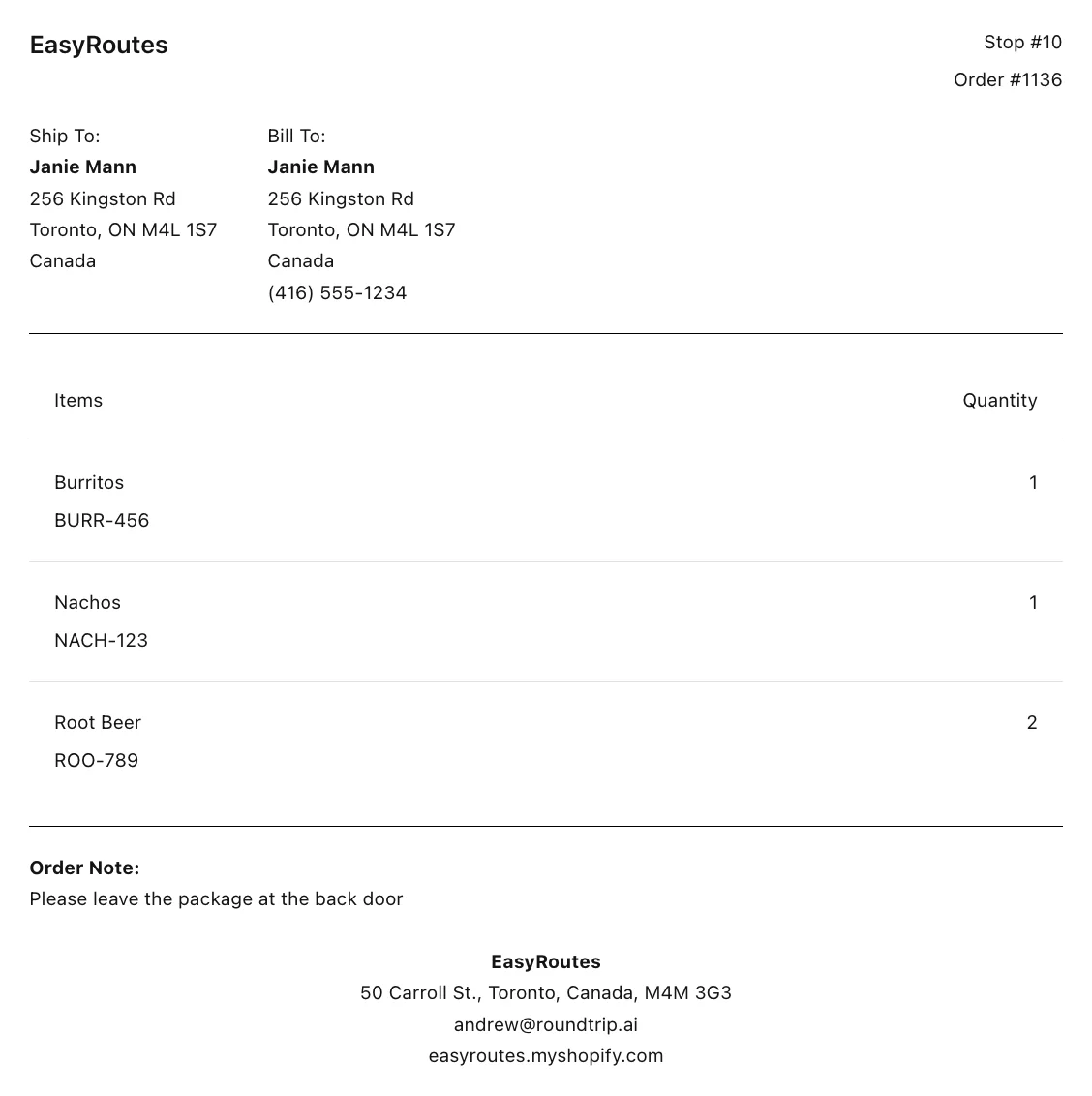
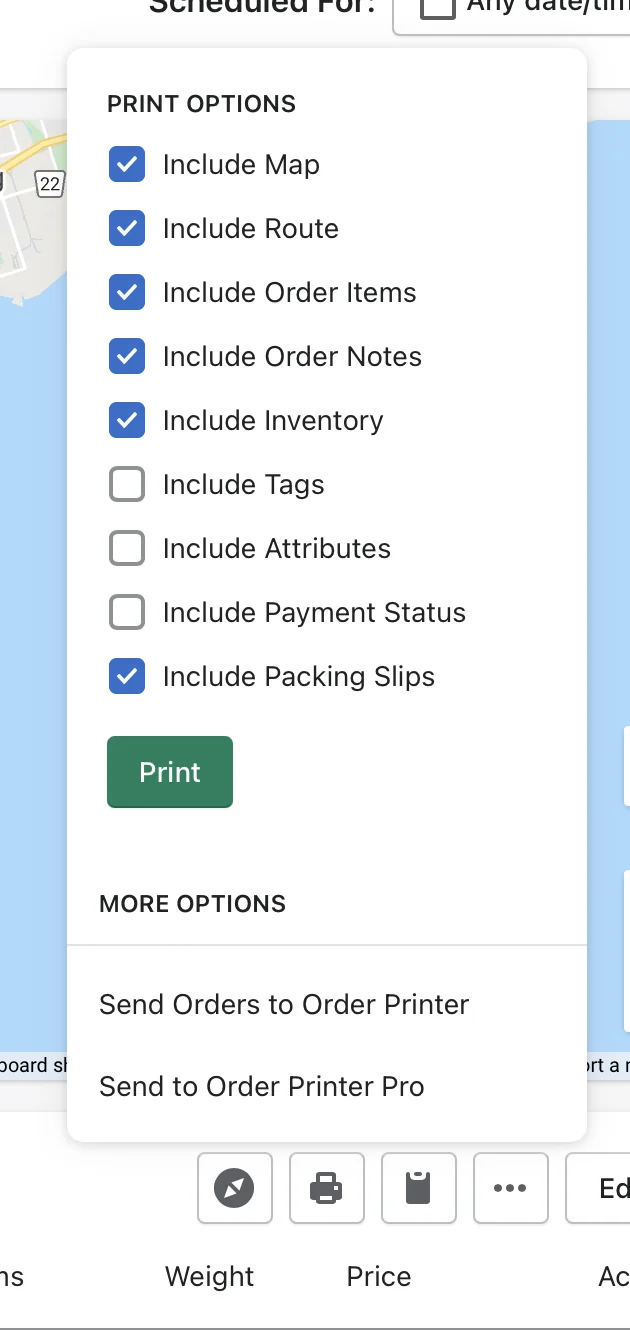
Now you can print off packing slips to include with your delivery orders! To do so, click on the print icon after generating a route and check the "Include Packing Slips" option.
Automatic ETA Updates
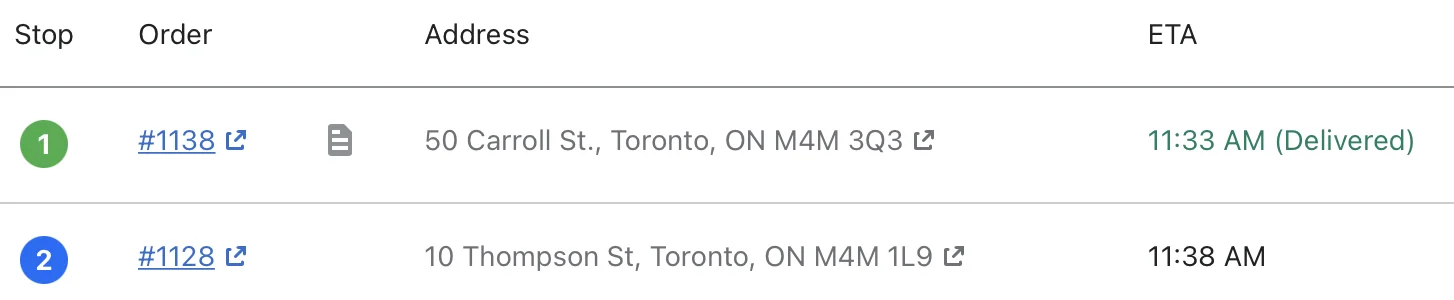
We now show a better status and updated ETAs for each stop when your orders are delivered or out for delivery.
Advanced Postal/ZIP Code Filters:
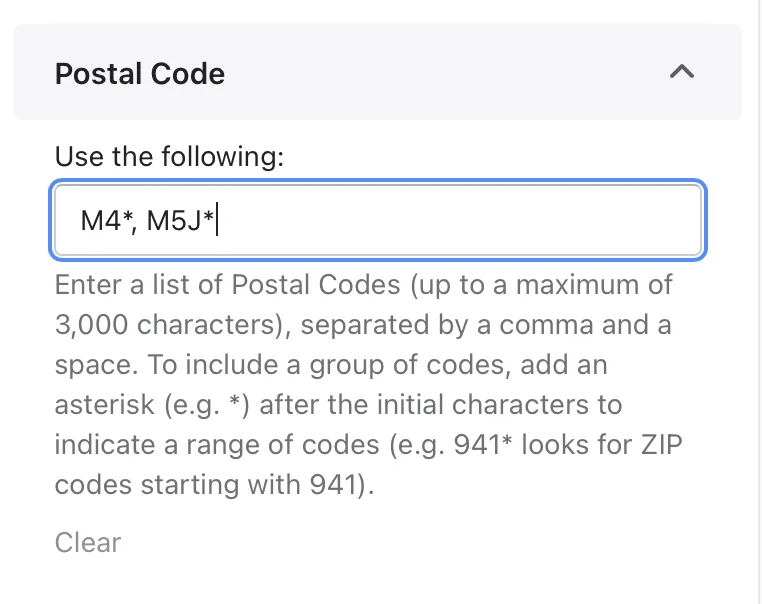
You can now filter for multiple zip codes, and use wildcards for finding specific orders. Find this under "More Filters" on the Order Selection page.
Driver Delivery Notes
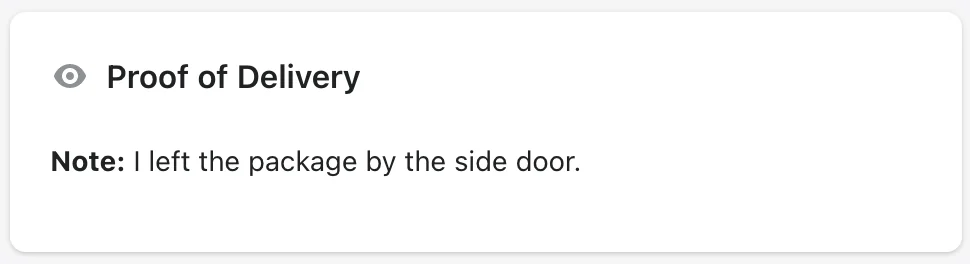
Your driver can now add a delivery note to be attached to the order through our "Proof of Delivery" feature in Driver View.
Under the hood ongoing improvements
We're always working hard to not only add new features, but to also make sure that EasyRoutes is always running smoothly. As such we've made lots of little tweaks here and there to boost the efficiency of our routing engine. Let us know if you notice a difference!