














Stop planning routes. Start dispatching them. EasyRoutes optimizes routes in seconds, dispatches to drivers with one click, and tracks everything in real time — so you can reclaim your mornings.
Contact sales

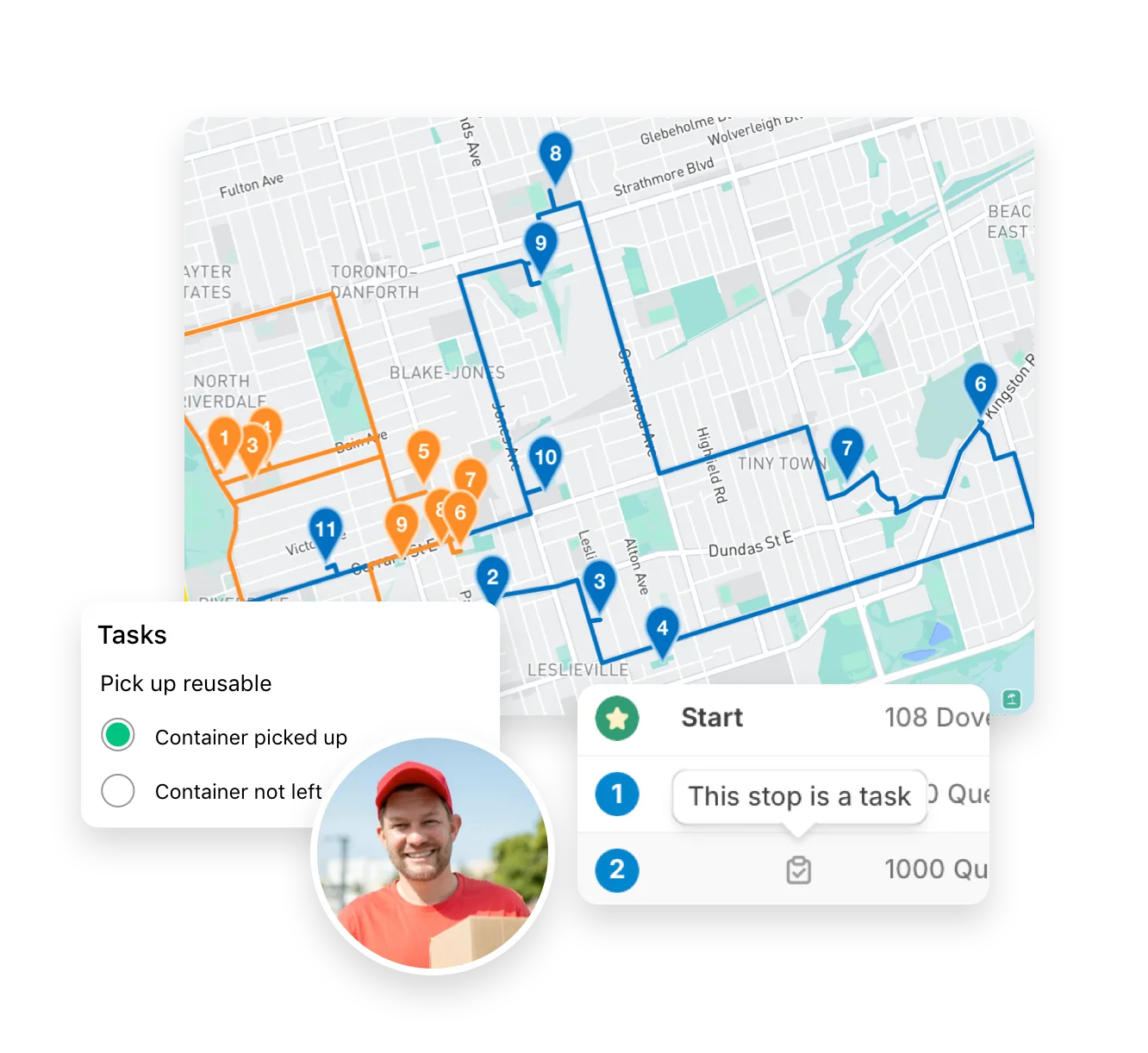
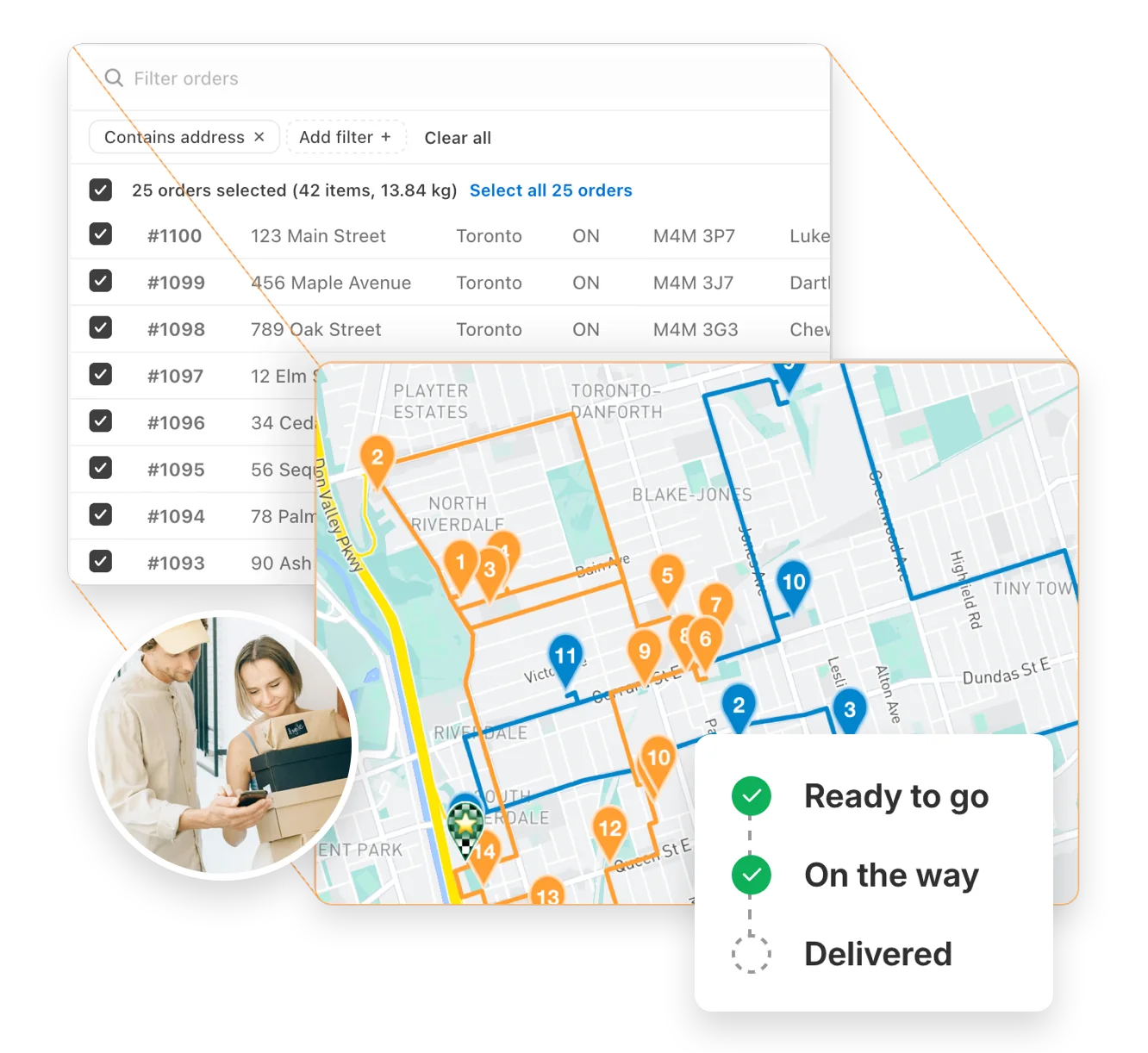
Select your orders, click optimize, and EasyRoutes generates efficient routes in seconds. The algorithm accounts for traffic, time windows, stop priorities, and delivery capacity, producing routes that beat manual planning by 20-30%. Hours of work becomes seconds.
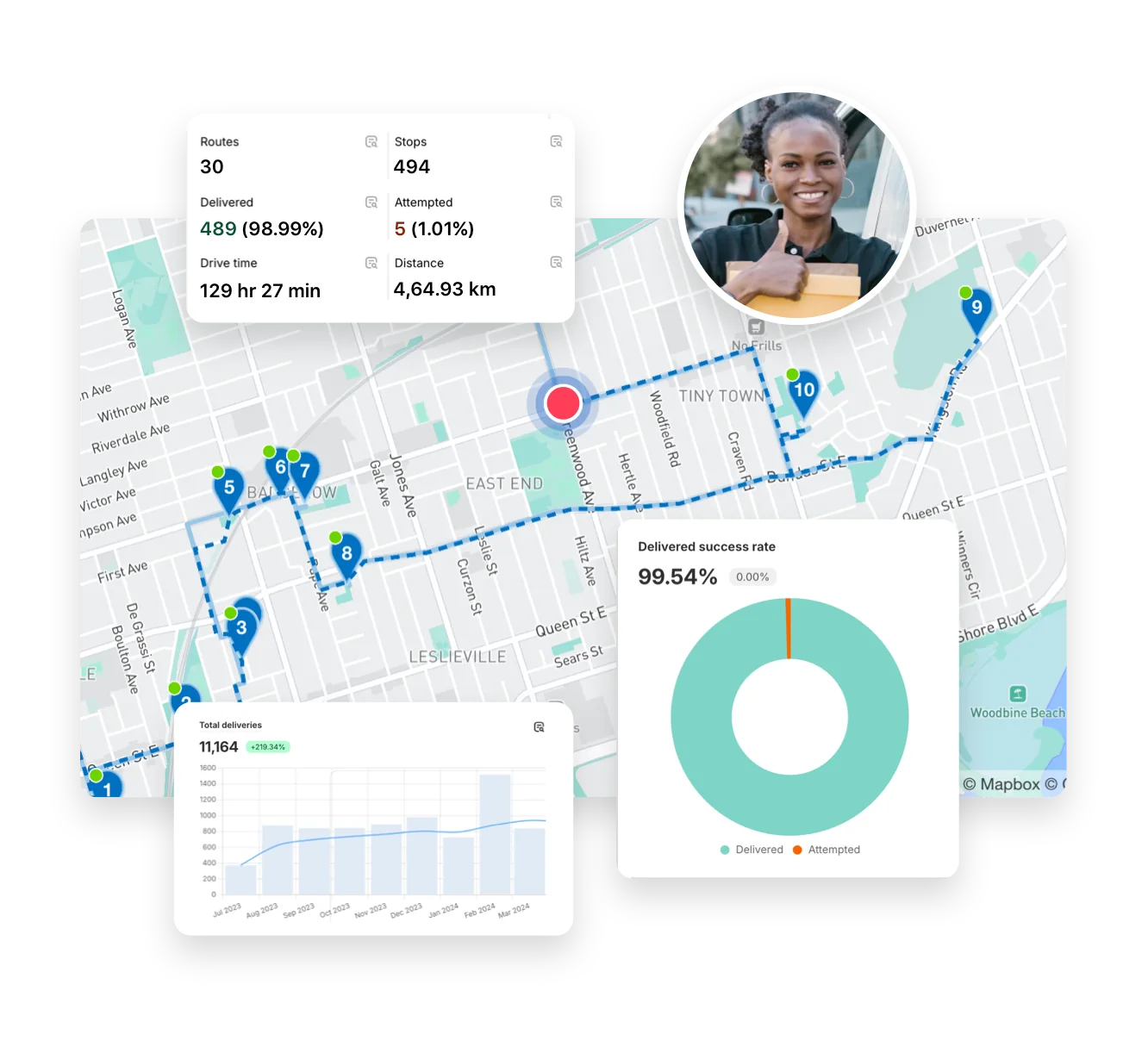
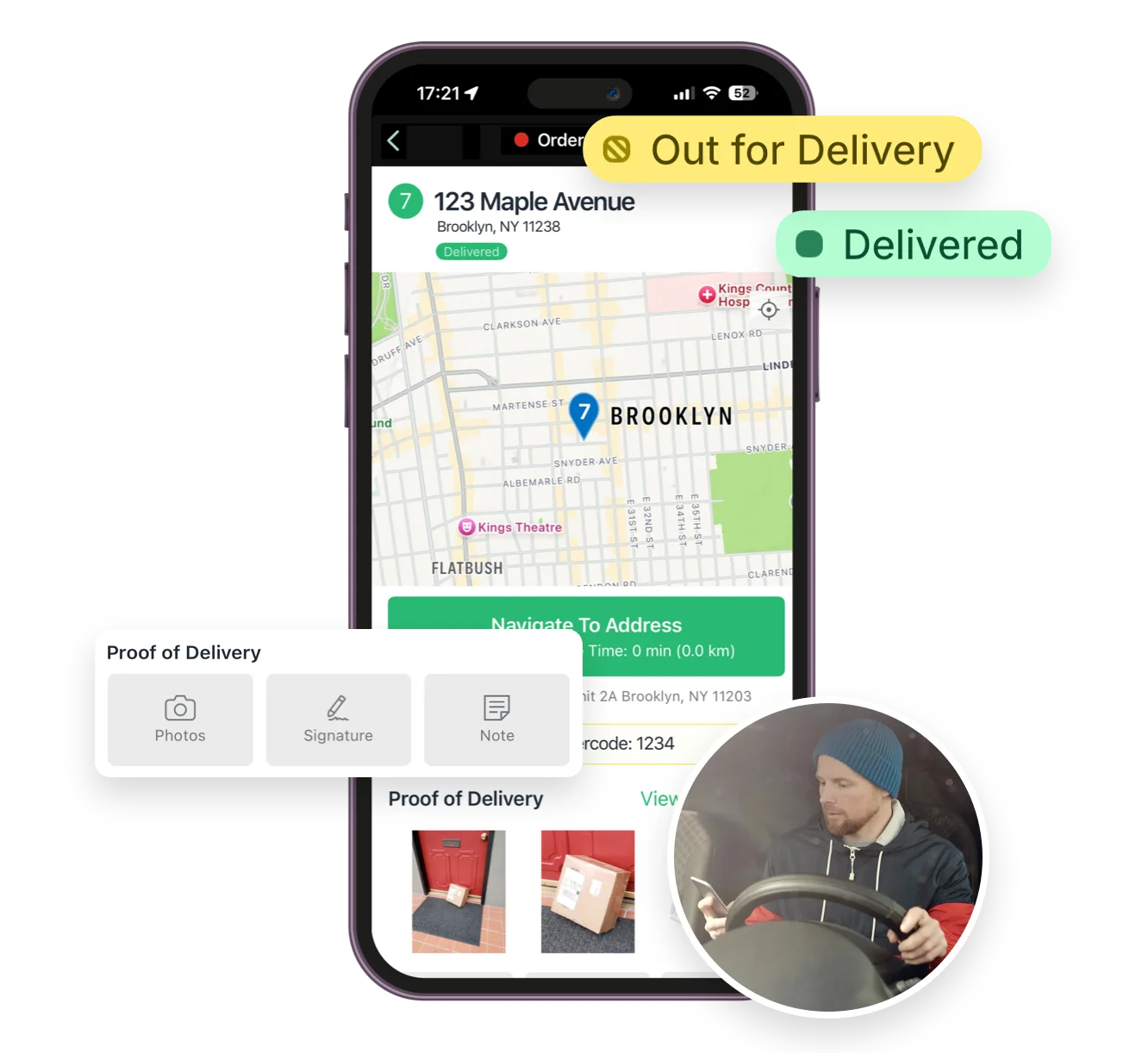
Push routes directly to drivers' phones with one click. No printing route sheets, no entering addresses manually. Drivers get turn-by-turn navigation, stop details, and customer information — everything they need, delivered instantly.

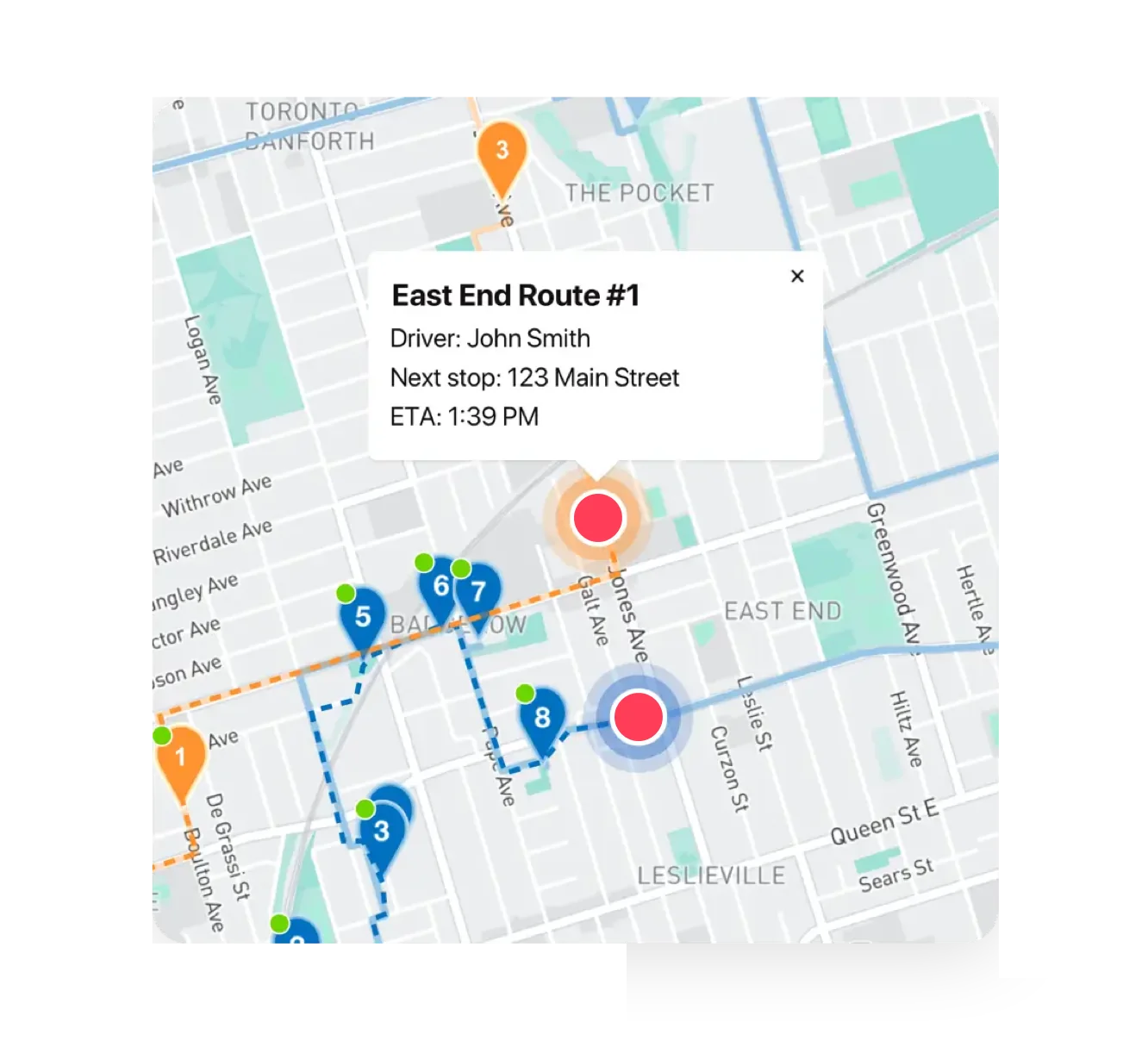
See every active route on a live map. Know exactly where each driver is, which stops are complete, and whether routes are running on schedule. Spot problems before customers complain.
Adding stops, reassigning deliveries, and adjusting routes is straightforward. Changes push automatically to affected drivers' phones. EasyRoutes handles the communication that used to require phone calls and crossed fingers.

• Most dispatchers report route planning dropping from 2-4 hours daily to 15-30 minutes
• Full flexibility to override or manually adjust optimized routes when needed
• Drivers download the free app on iOS or Android — route updates push in real-time
• Add same-day orders or reassign stops without derailing the schedule
.webp)
.webp)
EasyRoutes optimizes deliveries using your selected orders, start & end locations, stop time intervals, time windows, and route limits. You can balance routes, respect capacities, and re‑optimize as plans change.
See: Route Options · EasyRoutes 101
Yes. If a scheduled start time is set, routes can be auto‑assigned and dispatched to the selected driver when created.
See: Auto‑Dispatch
The route’s Tracking tab shows live driver location, recent path, next/current stop, and real‑time stop status, completion times, and proof of delivery events.
Yes. Assigned drivers receive a push notification when a route is dispatched to them, linking straight into the route in the EasyRoutes Delivery Driver mobile app.
No. Each route has one assigned driver at a time. To share the work, split stops across multiple routes or use self‑assign links on separate routes.
See: Driver Assignment
Click the + Add button under the map, choose Custom stop, and enter the stop details with a valid address. See: Add a custom stop
Add or remove stops on existing routes, then re‑optimize to refresh ETAs and send updates to the driver app. Changes can be made anytime during the day.
Yes. Select stops on a route and choose Send to another route, or drag between routes on a Route Group. Re‑optimize after moving to refresh ETAs.
Yes. Add/remove stops, drag‑and‑drop stops to reorder them, change drivers or schedules, and re‑optimize at any time.
See: Edit Routes
Use a stop’s Actions menu to mark it High or Low priority (or set several at once); High priority stops are included first when a route hits its limits. See: Priority stops
Yes. Enable Balance routes to distribute stops as evenly as possible across multiple routes/drivers while respecting other route constraints (like time windows, or item/weight limits).
See: Balance routes · How many routes?
Yes. Route Groups let you create, monitor, and dispatch multiple routes at once, and track all drivers within the group on one map view.
See: Route Groups