We've made a number of updates across EasyRoutes, improving access to key route details and enhancing data exports.
'Last route' column
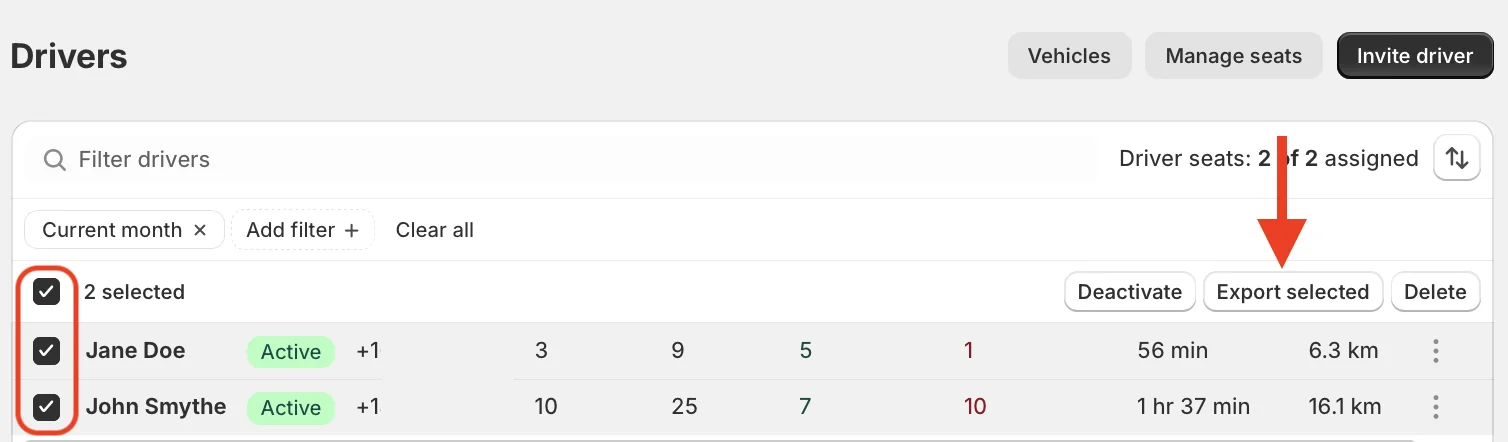
This new column on the EasyRoutes Orders page contains a clickable link with direct access to the last route that any order was added to, where applicable:

The Last route column is enabled by default; to disable it, click the Configure route columns button (highlighted below), and un-select the Last route option from the Customer & Order Details section:
'Yesterday' scheduled route filter
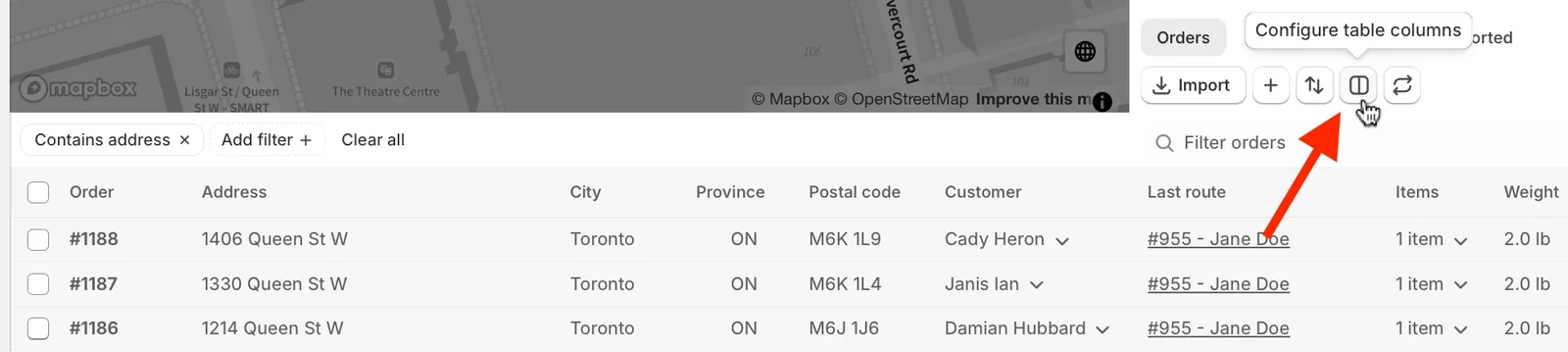
This new option can be applied on the Routes page, and will filter only for routes that were scheduled for the previous calendar date. Apply from the + Add filter menu by selecting the Start date option; enable the Yesterday selector shown below:
For instant access to the previous day's routes on an ongoing basis, we recommend adding this filter type to a saved Route View.
Export improvements
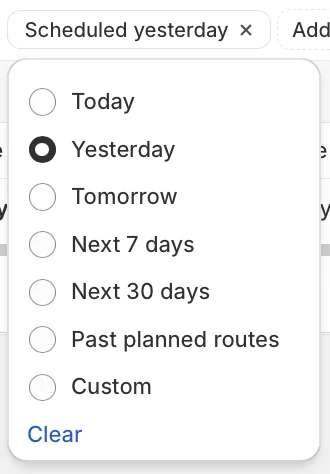
We've added the ability to include route tags in any export of selected routes on the Routes page. When exporting from the Routes page, ensure the Tags option is selected within the Basic information section, as highlighted below:
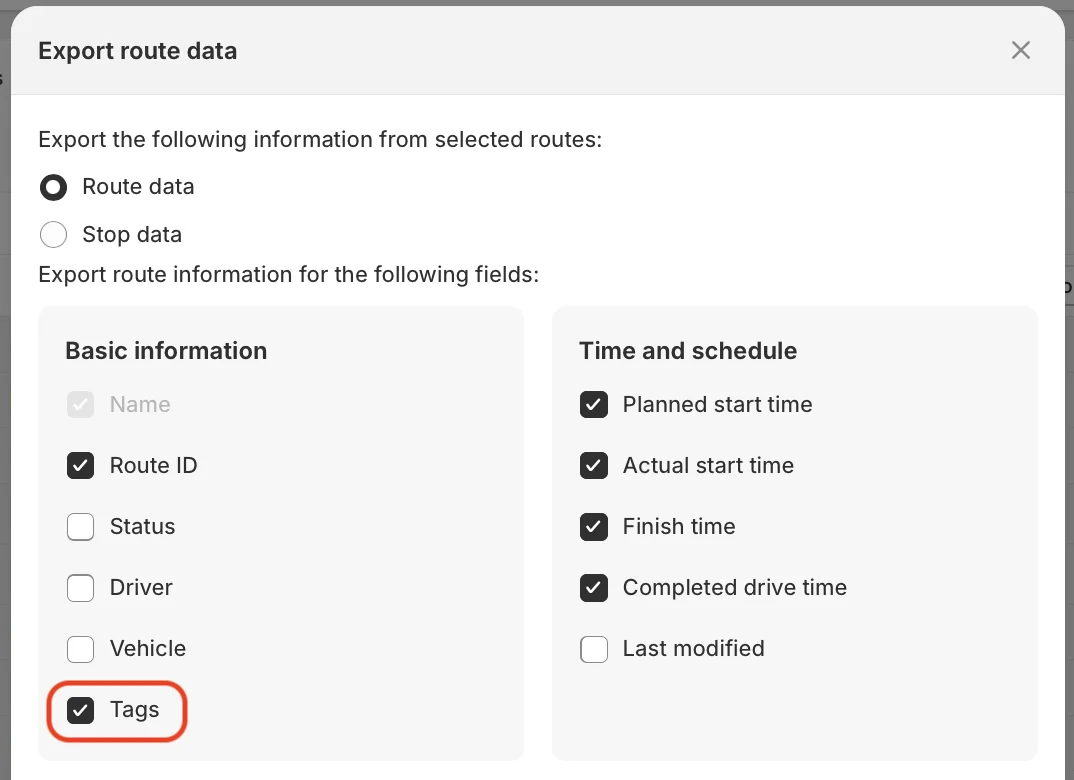
We've also added an export tool to the EasyRoutes Drivers & Vehicles page. Use the checkboxes to select drivers for export, then click the Export selected button highlighted below; choose whether to copy your exported data to the clipboard or download as a CSV file to complete the export. The same steps can be used to export data from the Vehicles section of the same page: