
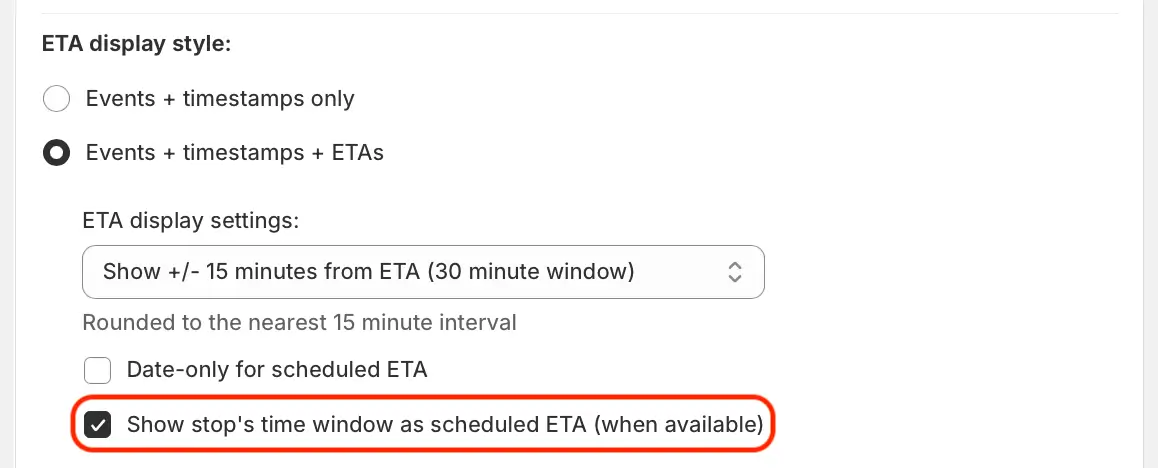
We've added a new setting to EasyRoutes' tracking page ETA options, allowing users to directly use a stop's configured time window as the ETA value displayed on customer order tracking pages. Configure this behaviour from your EasyRoutes Settings > Order Tracking tab, by enabling the setting highlighted above within the ETA display style panel.
Stops that do not have a time window configured will continue to use the ETA style configured via the rest of the settings in this panel. Users can manually add time windows to any stop on an existing route via the Edit stop tool; time windows can also be automatically applied to stops based on order tags, attributes, or delivery methods via EasyRoutes' advanced automation tools.
For full details on working with these features, see the support documentation for order tracking page ETAs, stop time windows, and order automation rules.