Changelog
Here are the latest product updates from EasyRoutes. If you have feedback or suggestions, please reach out — we'd love to hear from you!
Here are the latest product updates from EasyRoutes. If you have feedback or suggestions, please reach out — we'd love to hear from you!
We've added three new options for printing packing slips, allowing users to include any of three different proof of delivery items (photos, signature, and/or driver note) on packing slips when available, particularly useful when packing slips are used as a post-delivery confirmation document. Enable these new variables directly from the Print Preview menu:

We've enabled three new variables that can now be included in CSV spreadsheets before importing orders into EasyRoutes:

We've added the ability to mark any routes as Archived, ensuring your Routes Page contains only the routes you still need to work with. Any routes that have been archived will be hidden from view to better organize the Routes Page, but remain fully accessible for future review or record keeping using filter controls.
From the Routes Page, use the checkboxes to select any route(s) you'd like to archive. Click the More actions button from the menu that appears at the bottom of the page, and select Archive routes:

Once archived, routes will no longer display on the Routes Page by default. To review routes that have been archived, click the Add filter button at the top of the Routes Page, and select Archived - this will give you the option to display just Archived routes, just Unarchived routes, or All routes to display both types. When viewing All, routes that have been archived will display with a grey background (see the middle three routes below) to differentiate them from unarchived routes:

Routes can be unarchived by applying the All or Archived filter, then using the checkboxes to select routes for unarchiving. Once selected, click the More actions button from the menu that appears at the bottom of the page, and select Unarchive routes:

We've given EasyRoutes' customer order tracking pages a complete refresh! Our new tracking pages are more informative and visually appealing than ever before, and are designed to display seamlessly across all device types and screen resolutions. Customers can access all their order details - including order status, real-time driver location, and proof of delivery - from our new, easy-to-read card-based tracking page layout:

If you've already modified your order tracking pages to include non-default variables, custom ETA and schedule settings, or localized translations, don't worry! All your customizations will be automatically transferred to the new tracking page layout, and no further action is required to deliver the same outstanding experience your customers already expect, in a spruced up and more user-friendly package.
Customize and preview your customer order tracking pages for all order status events from your EasyRoutes Settings > Order tracking tab.
We've made a number of improvements to the Orders Page layout, making it easier than ever to view, sort and route your imported & saved custom stops alongside any Shopify orders. You'll be prompted to enable new layout settings with a banner the next time you open the Address Book (this prompt can also be dismissed using the close icon on the banner):
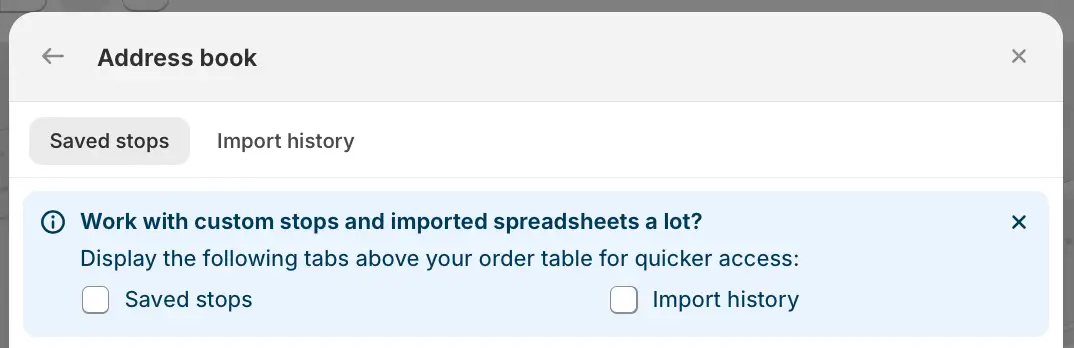
You can also manually enable/disable these new layout settings at any time from your EasyRoutes Settings > General tab, by scrolling down to the Address book card of the Orders page options section:
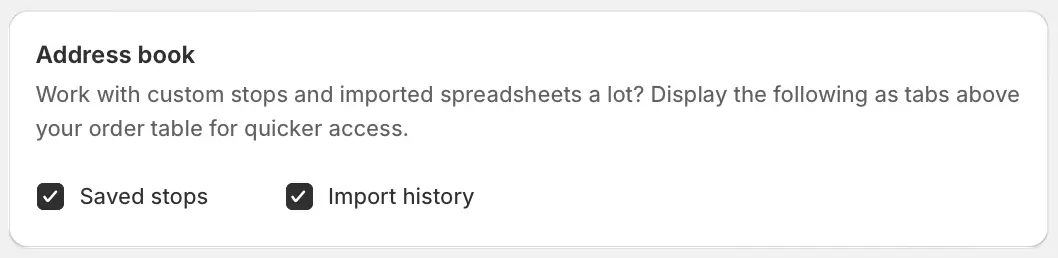
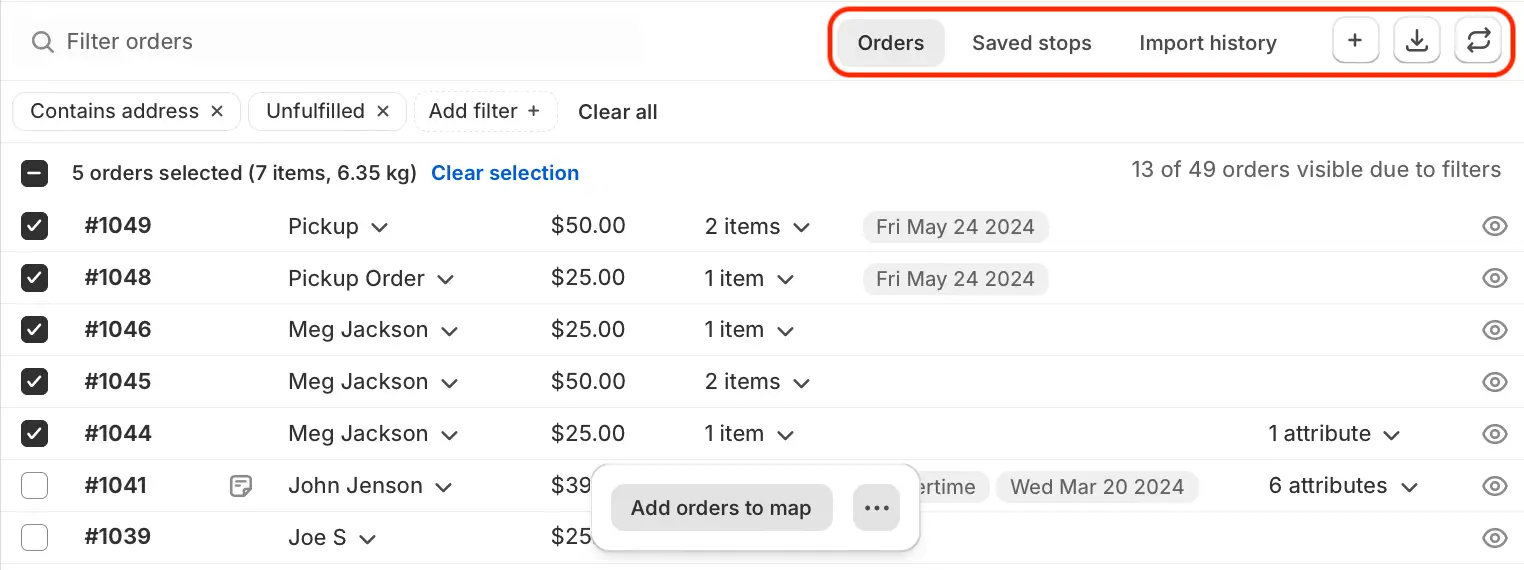
Once enabled, new tabs and controls will appear on the upper right-hand corner of your Orders table, next to the Filter search bar.
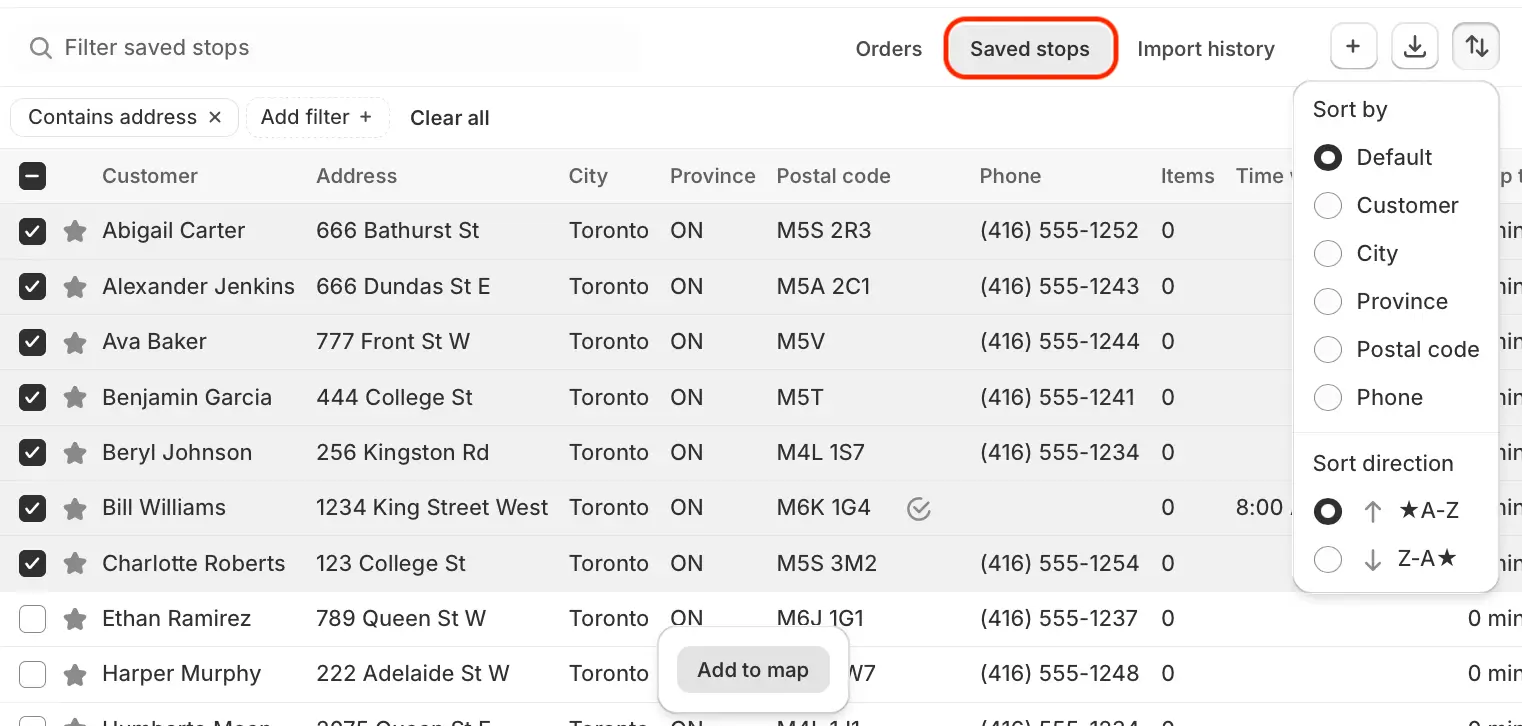
Navigating to the Saved stops tab will provide quick access to any past stops you've created and saved in the Address Book.
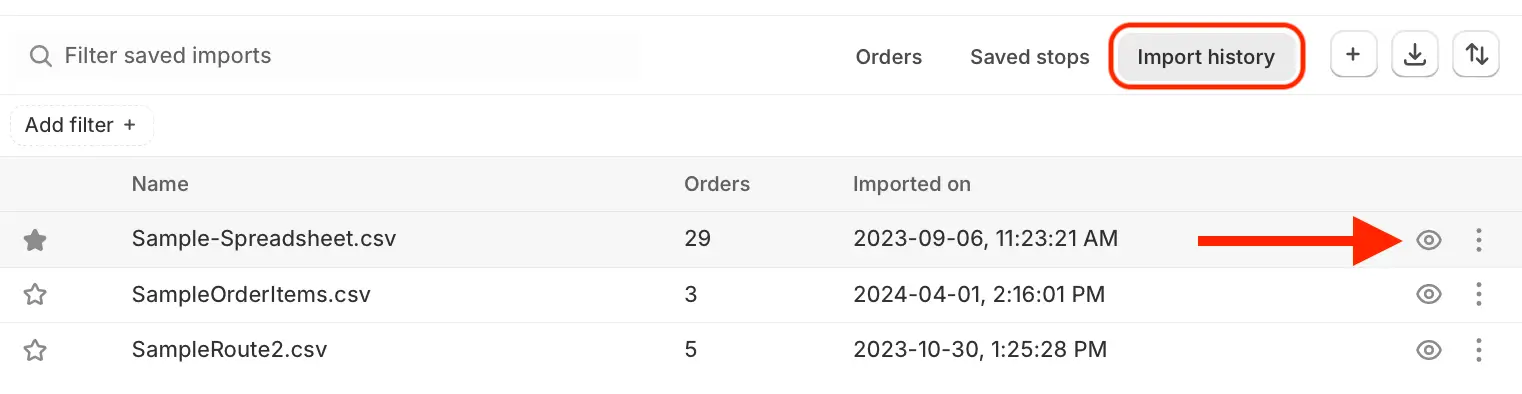
The Import history tab contains a list of all CSV spreadsheets imported into the Address Book in the past. Click the eye icon on any import to access a table of all stops contained in that import:
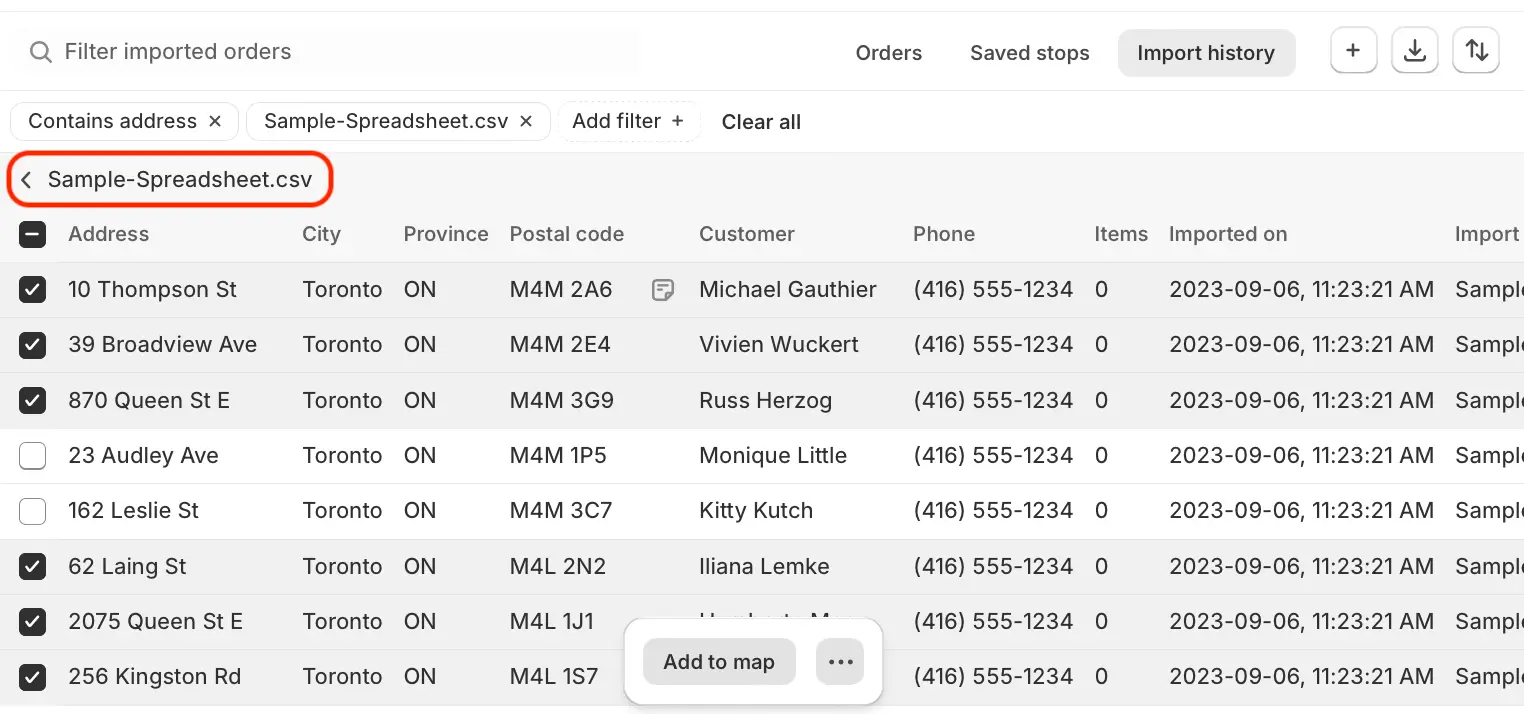
Use the checkboxes to select any imported orders you'd like to route before clicking the Add to map button at the bottom of the page. After adding orders to the map, click the back arrow + spreadsheet title (highlighted below) to return to the list of imported CSVs:
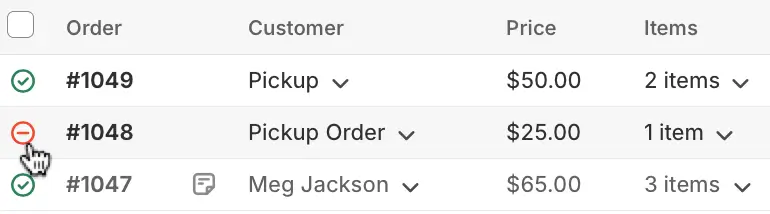
Notes:
We've added a number of new settings to fine-tune what route information appears in the Dashboard when opening EasyRoutes. Update Dashboard customization options from your EasyRoutes Settings > General tab, within the Dashboard page options section:

We've increased the capacity of EasyRoutes' CSV import tool, allowing up to 15 order/stop data CSV files to be imported in a single batch. Before uploading your CSV files to EasyRoutes, ensure that your spreadsheet column titles match across all CSV files to properly parse all order data when importing.
To import multiple CSV files at once, follow the same steps used to import a CSV file, selecting up to 15 files at once to import. Once your columns have been mapped, the number of files to be imported will be listed at the top of the page. Each CSV filename will be listed below the map, with each file's corresponding orders listed below their title. Use the checkboxes to select individual orders and/or entire files to import at once:

We've added a new Delivery note variable that can be included on any customer notification emails when available, ensuring any additional notes included by drivers when delivering orders are automatically shared with customers via email.

Customize email notification templates for all delivery status events from your EasyRoutes Settings > Notifications tab, under the Email notifications section.
We've added a toggle to the Stop notes, Order notes, and Payment status variables when printing a route to configure whether these variables display as a line of text below each order (i.e. consistent with previous app behaviour) or as an independent column for each order. Click the column/text toggle beside each of these variables within the Print Preview menu to see these changes reflected immediately within the printout preview:

Three additional variables (ETA, Drive time, and Stop time) can now be enabled/disabled individually when including the List of stops on your route printouts:

We've also implemented a fix for the Route map displaying incorrectly on printouts under specific circumstances. If your route map isn't displaying correctly for any route printouts, use the Route map checkbox to disable and re-enable this variable from the Print Preview menu to restore the correct map sizing and stop pin data.
We've made a number of improvements to Route pages for additional flexibility and data visibility when viewing planned routes:


Enable the Method column from your EasyRoutes Settings > General tab, within the Route page options section:

We've improved workflows for adding new routes to existing route groups. After selecting route(s) and clicking Add route to group, you'll be taken to a new page where you can filter existing route groups, and click the plus icon on the left-hand side to immediately add the route(s) to the route group of your choice:

The performance enhancements announced earlier this week apply to this workflow as well, with up to 98% faster loading and adding speeds, particularly when working with larger, more complex route groups.
When printing routes, you can now optionally include Customer name, Customer email, and/or Customer phone within the List of stops printout; Shipping phone can now also be included, particularly useful for orders where the recipient may not be the same individual who placed the order (i.e. gift deliveries). These variables will now display for both Shopify-native orders, as well as imported stops or manually created custom stops:

*Updated from a previous version to include optional phone variables.
Version 1.0.43 of the Delivery Driver mobile app is now available to download for iOS and Android. This release largely consists of maintenance updates, and users should not experience any noticeable impact when interacting with the app compared to the previous version.
We've made several adjustments to the infrastructure powering EasyRoutes, resulting in significant improvements to the loading speed of route groups. Users with larger, more complex route groups will experience up to a 98% reduction in the load time of route groups; smaller, less complex route groups will also load at least 90% faster than prior to this update. Regardless of size, route groups will now load almost instantaneously instead of displaying a loading spinner for multiple seconds before snapping into place.
Users should refresh any browser windows with an active EasyRoutes session to ensure these performance improvements have taken effect.
Version 1.0.42 of the Delivery Driver mobile app is now available to download for iOS and Android, including the following fixes and improvements:
Drivers will need to update to the latest version of the app (v1.0.42) in order to take advantage of updated functionality within the EasyRoutes Delivery Driver mobile app.